Read notifications and manage your preferences
Use “Account & notifications” to reach notifications, recruitment invitations, and account tools.
Steps
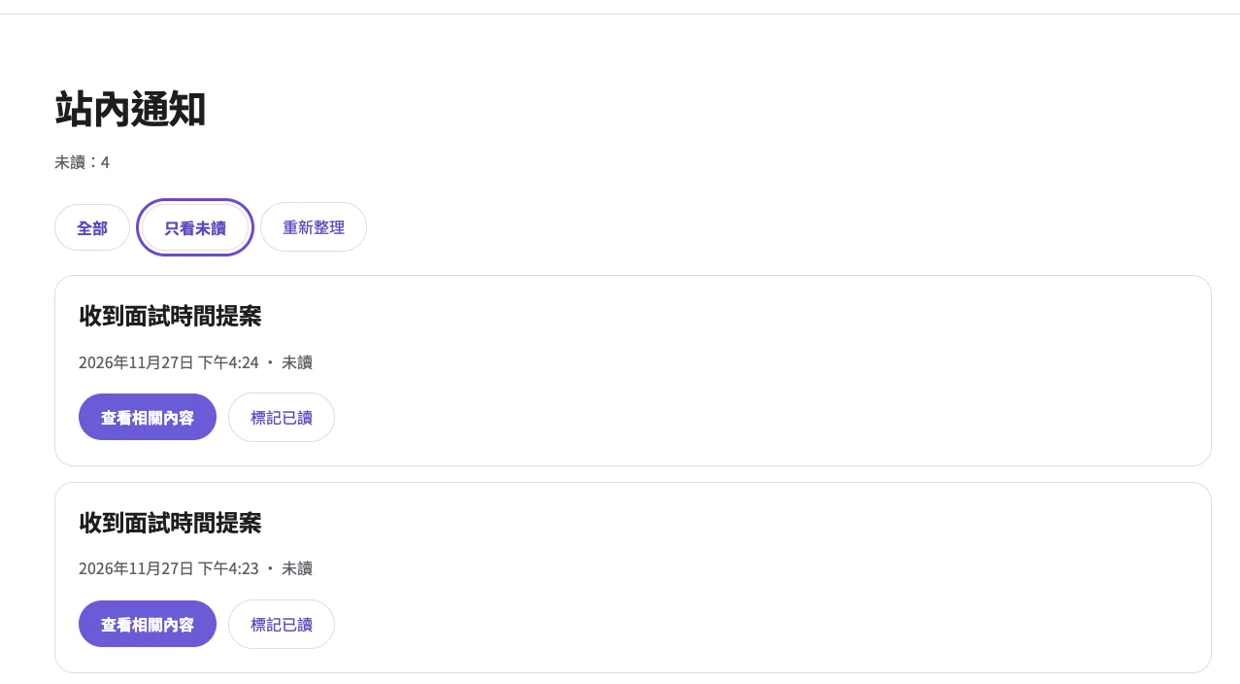
- Open “Notifications” to show unread items only, view related content, or mark items as read.
 View full size
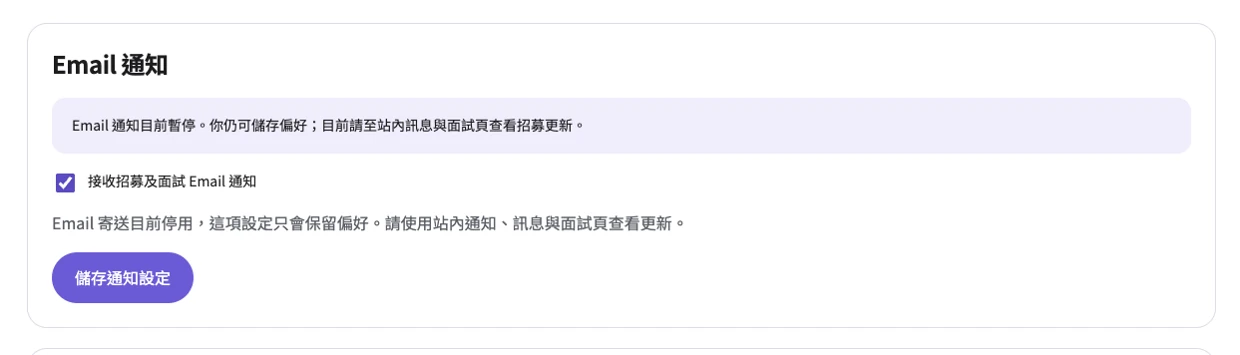
Example · “Unread only” filters the list. Open related content or select “Mark read” on an individual notice. - To keep a preference for recruitment and interview emails, change the option in Settings and save it.
 View full size
Example · Choose a preference and save it with “Save notification settings.” The page also shows email delivery status.
Check the result
Reopen Settings to check your saved preference. Use Notifications, Messages, and Interviews for updates.