Reply to a recruitment invitation and confirm an interview
Sign in and use Notifications or Messages to open the recruitment conversation and interview.
Steps
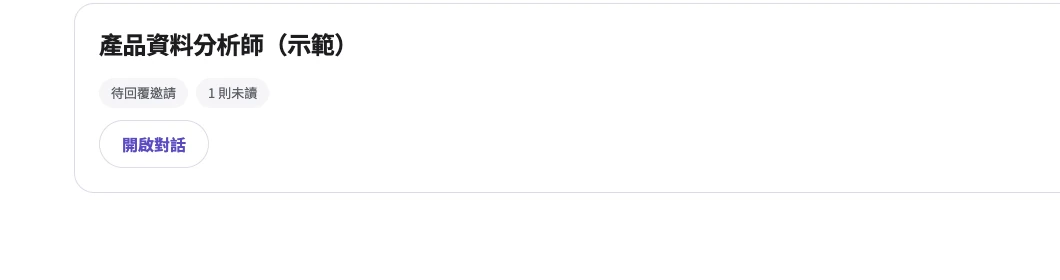
- Open “Recruitment invitation received” in Notifications, or find the conversation for the job in Messages.
 View full size
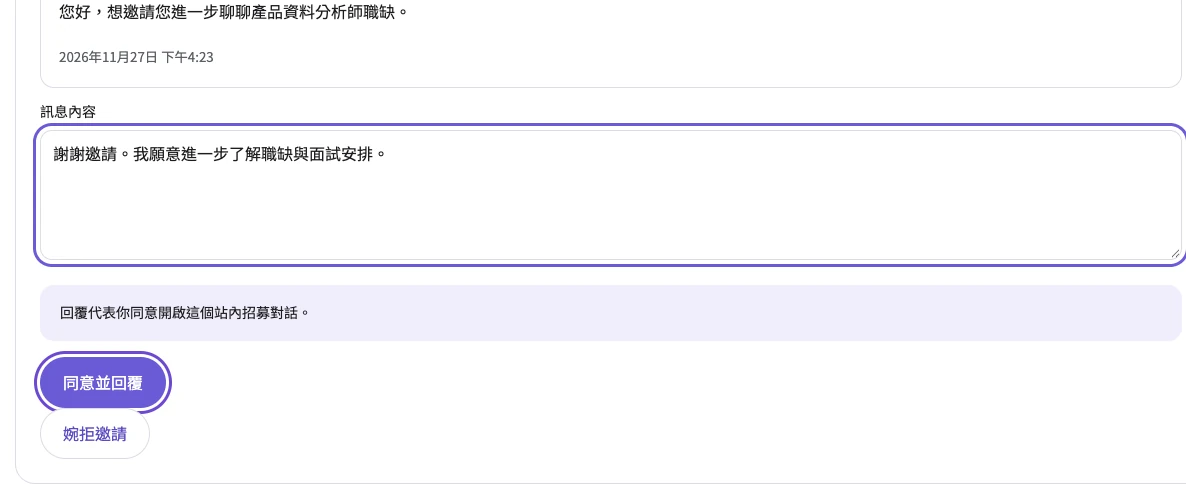
Example · In “Messages,” find the conversation for the same role. - Check the job and hiring team, enter a message, and choose “Accept and reply.” To decline the conversation, choose “Decline invitation.”
 View full size
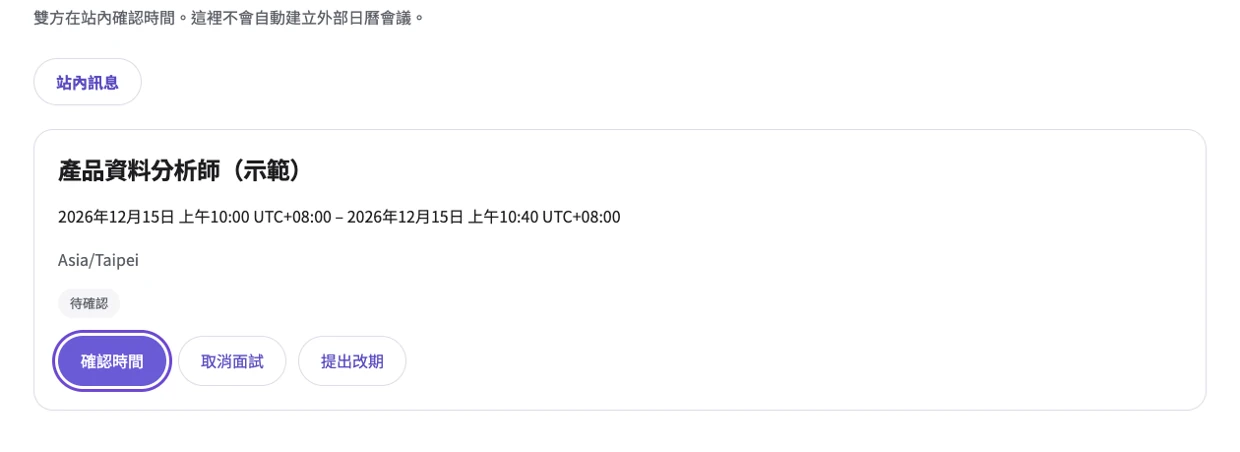
Example · Check the role and hiring team, then use “Accept and reply” or “Decline invitation” in the original conversation. - When you receive “Interview time proposed,” open “Interviews,” verify the date, time, and time zone, then choose “Confirm time” or another available response.
 View full size
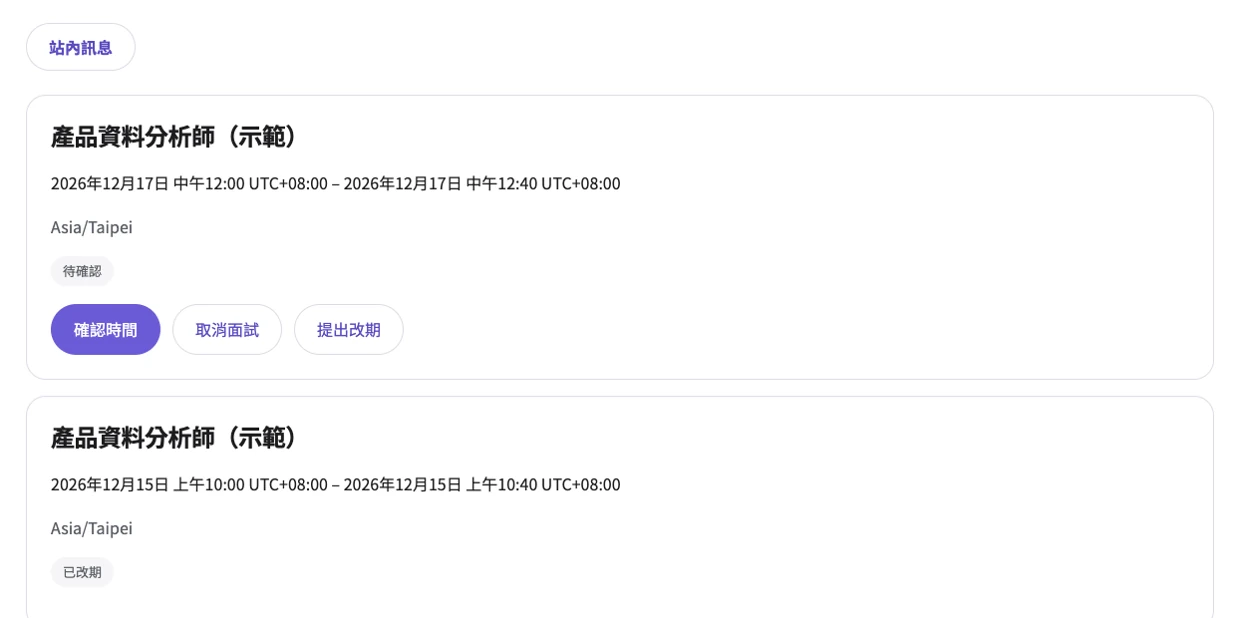
Example · “Interviews” shows the proposed date, time, and time zone. Verify them before choosing “Confirm time” or another response. - If you receive a rescheduling notice, check the new proposal and confirm it again. Use the latest interview status to plan your attendance.
 View full size
Example · After rescheduling, the old entry is marked “Rescheduled.” Check the pending time and use “Confirm time” on the new entry.
Check the result
After confirming, check the confirmed booking in “Interviews.” You can also find it using the interview filter in “My bookings.”