Invite applicants, schedule interviews, or view assigned bookings
Company owners and delegated HR can start an in-app conversation with an applicant for a job they manage, then propose an interview.
Steps
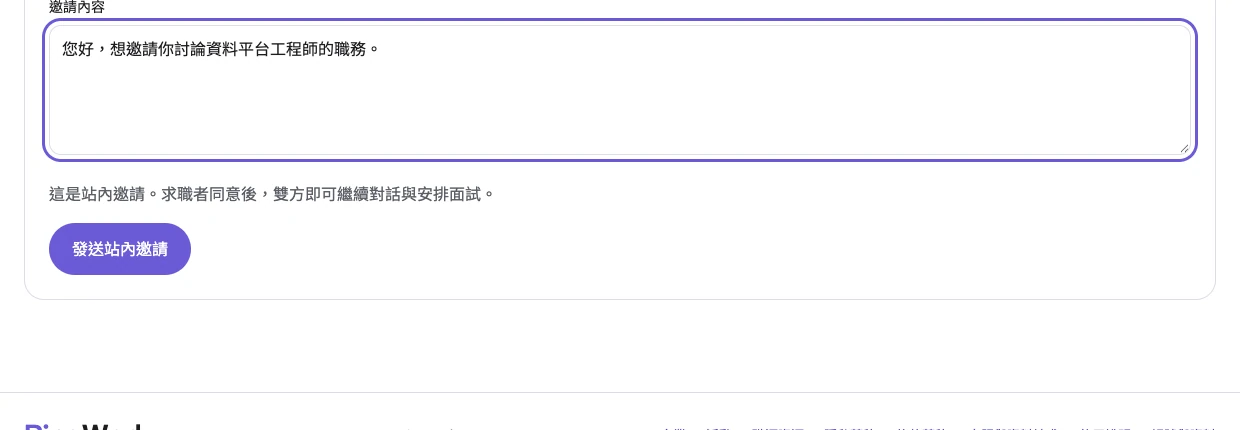
- Open the application in “Candidates,” select “Messages / interviews,” enter your message, and select “Send in-app invitation.”
 View full size
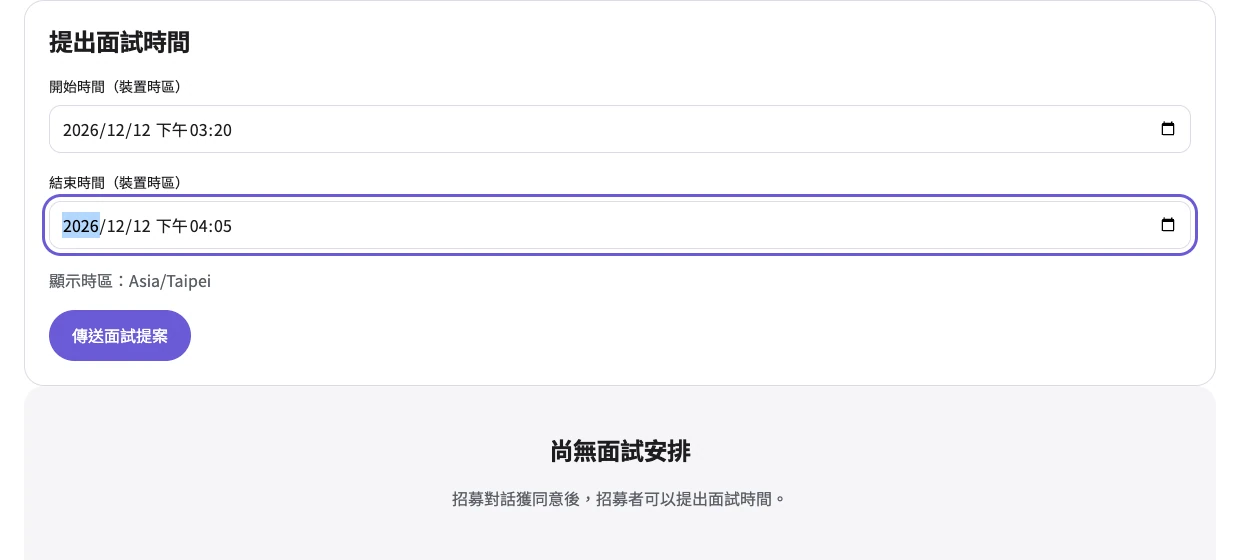
Example · Compose an invitation in the candidate’s messaging form, then select “Send in-app invitation.” - After the applicant accepts, choose “Schedule interview” from the conversation. Under “Propose an interview,” verify the time zone and start and end times, then select “Send interview proposal.”
 View full size
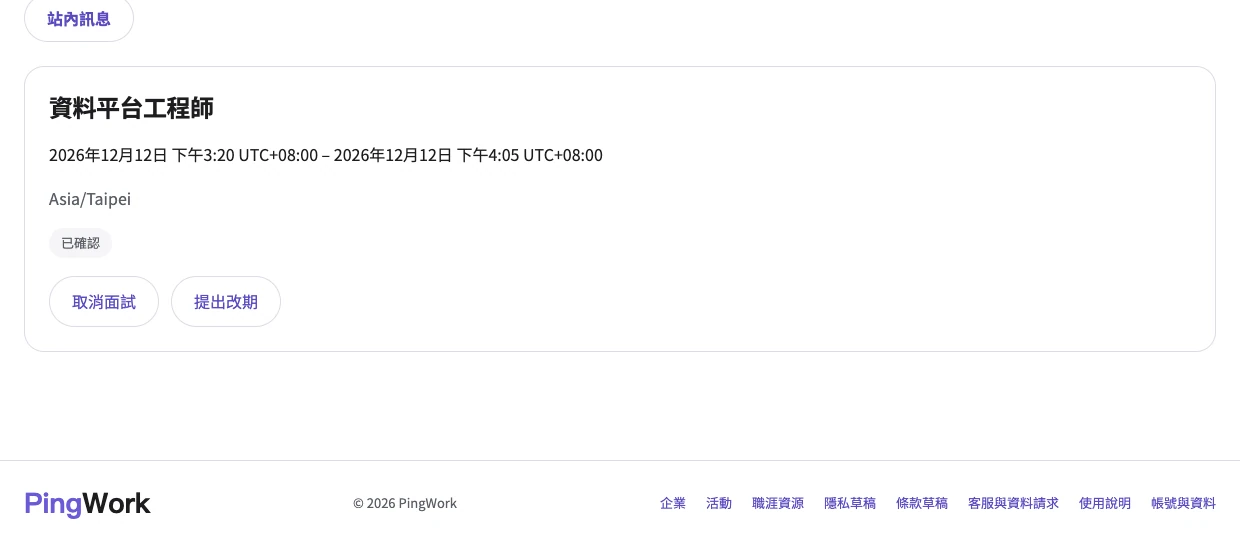
Example · Verify the time zone and start and end time before sending the interview proposal. - Check “Interviews” to see whether the applicant has confirmed. Use the controls available on the booking to cancel or reschedule. A new proposal requires the other party to confirm again.
 View full size
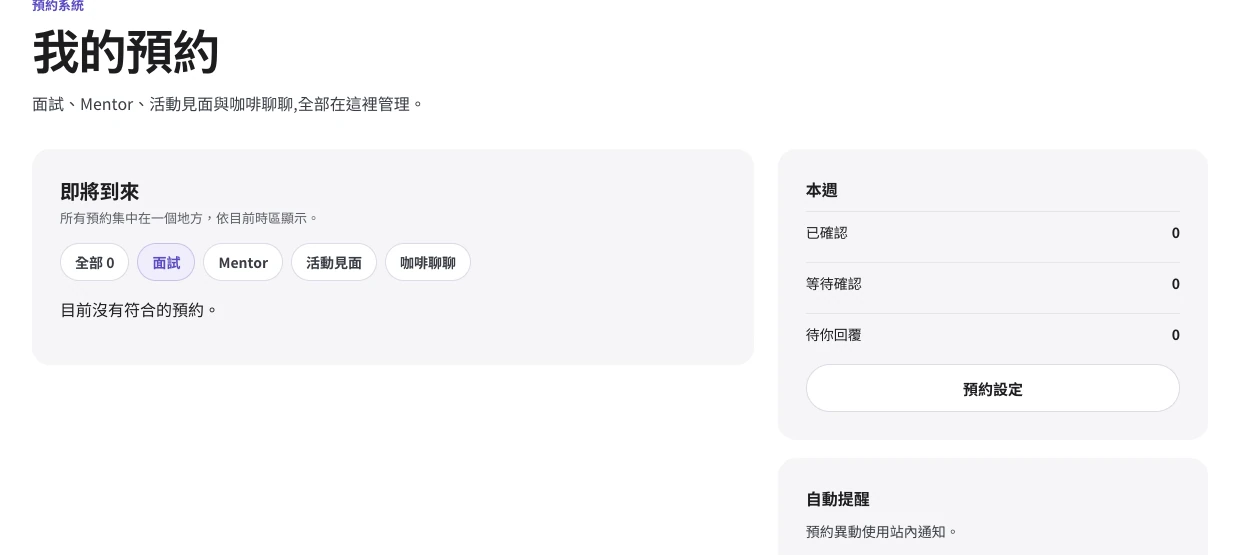
Example · Open the original booking to verify that it is confirmed and see the available controls. - If you are signed in as an assigned interviewer, open “My bookings” and select the interview filter to view your bookings and authorized résumés.
 View full size
Example · Select “Interviews” in “My bookings.” The list shows bookings available to the current account.
Check the result
When the applicant confirms, the booking shows “Confirmed.”