Find features and switch languages
Start from the homepage for your current task. After signing in, use the account or employer menu to return to your workspace.
Steps
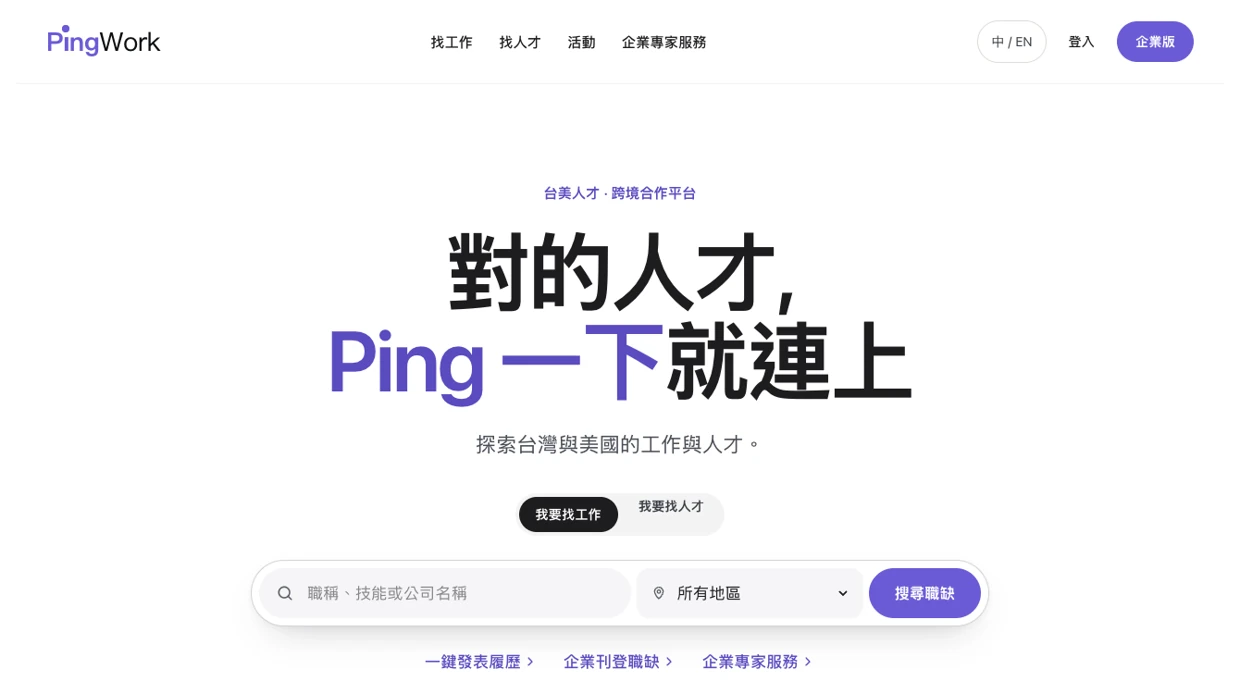
- Open PingWork. Job seekers can start with jobs, companies, or their résumé. Employers can start with the business entry or employer signup.
 View full size
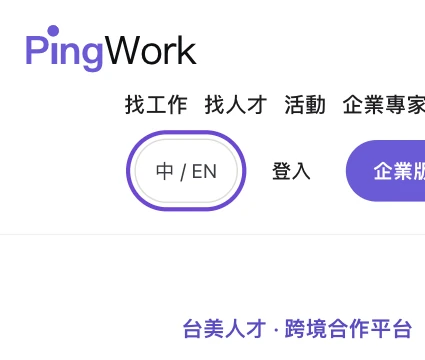
Example · Find “Jobs” and “For business” in the header and the résumé entry under search. - Use the language control in the header. On a phone, expand the navigation first if needed. Save a draft before switching languages mid-form.
 View full size
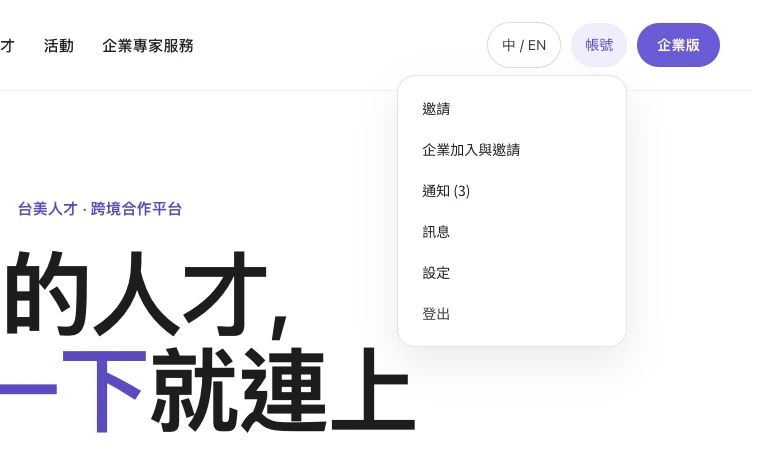
Example · On mobile, use “中 / EN” in the header to switch to English. - After signing in, use the account menu for your profile, notifications, messages, applications, or bookings. If you manage multiple companies, check the organization shown in the workspace.
 View full size
Example · Open “Account” for notifications, messages, or settings. Open Settings to find your applications.
Check the result
Use the same account in either language. If a feature is missing, check the signed-in account, organization, and role.