Sign in, reset your password, or replace recovery codes
Sign in with the email and password you set for PingWork.
Steps
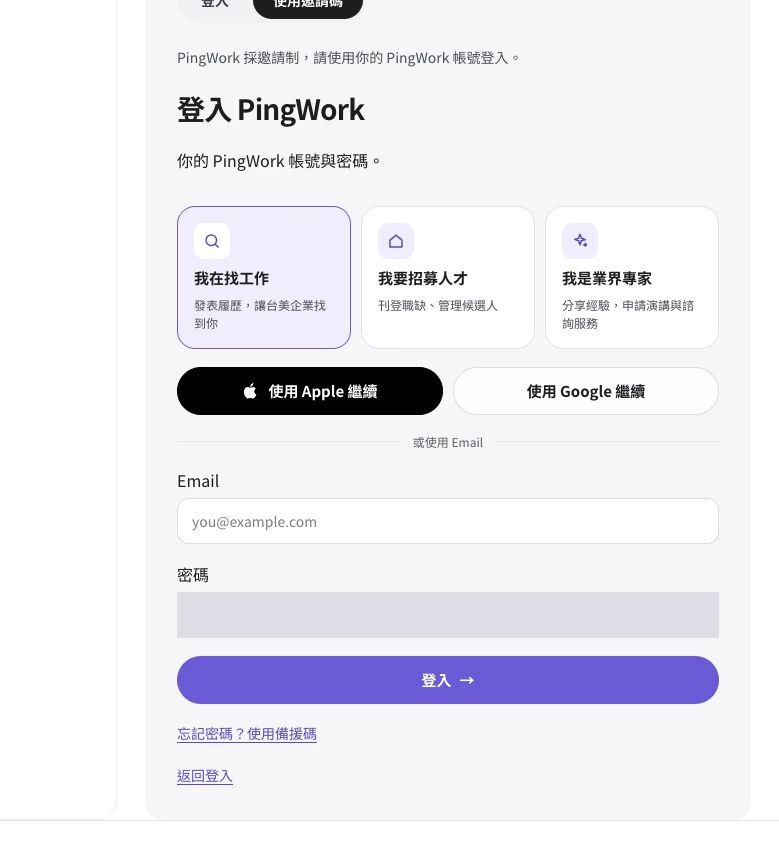
- Enter your email and password and select “Log in.”
 View full size
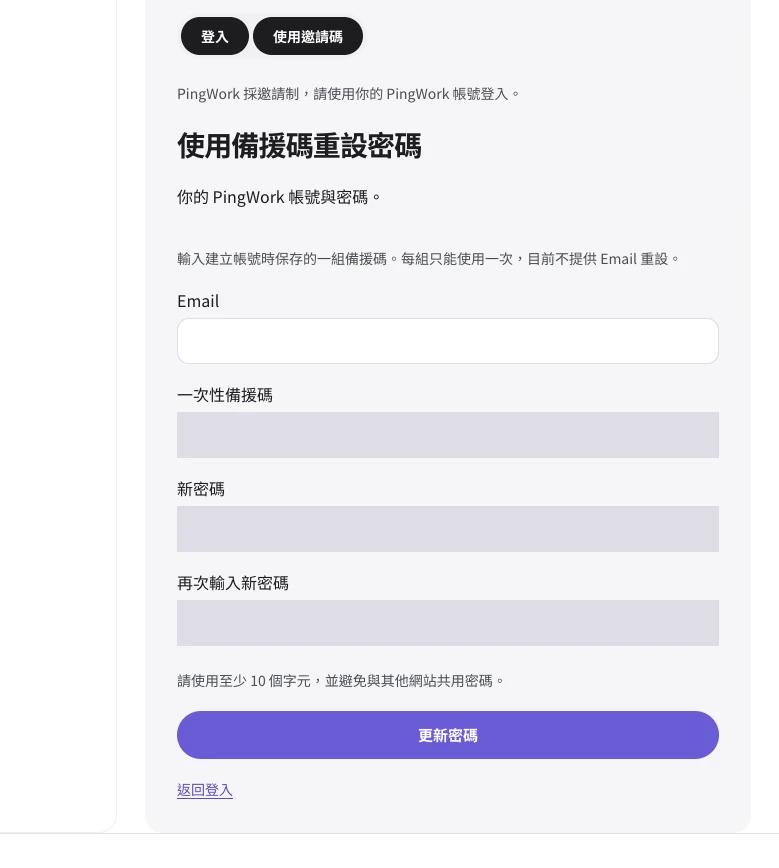
Example · The sign-in card contains the email, password, and “Log in” button. - If you forgot your password, select “Forgot your password? Use a recovery code” and enter your email, an unused code, and a new password.
 View full size
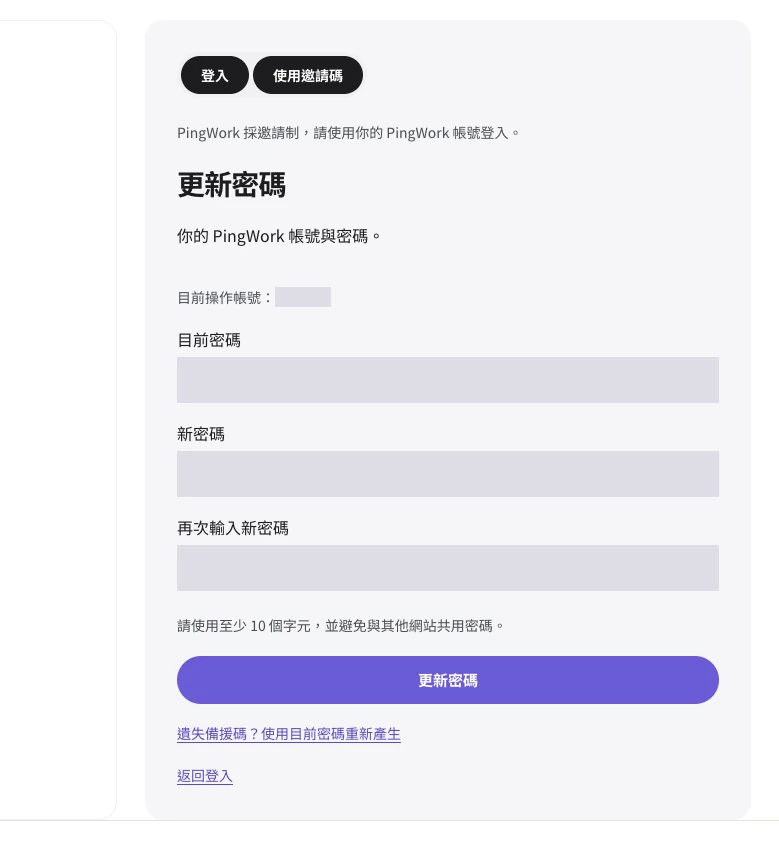
Example · The reset form asks for your account email, an unused recovery code, and the new password twice. - While signed in, use Account settings to change your password or replace your recovery codes using your current password.
 View full size
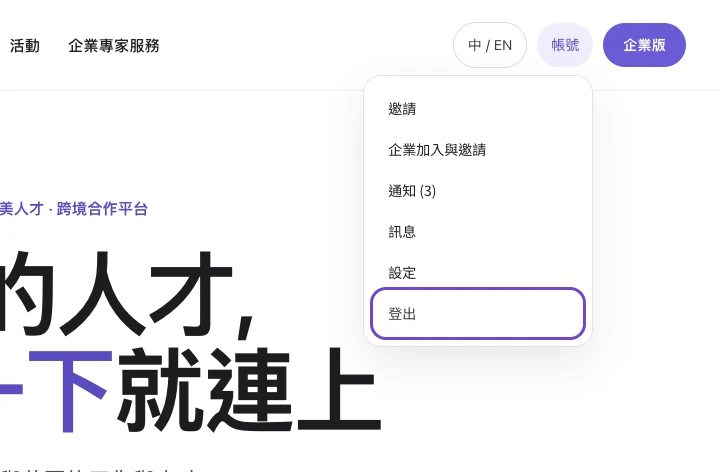
Example · “Update password” checks your current password and asks for the new password twice. - On a shared device, choose Sign out in the account menu and check that the signed-out view appears.
 View full size
Example · Choose “Sign out” in the Account menu and check that the sign-in entry returns.
Check the result
After a reset, sign in again with the new password.