Save an assessment and update the hiring decision
Company owners and delegated HR can assess candidates for jobs they manage and use the available recruitment actions to update the stage.
Steps
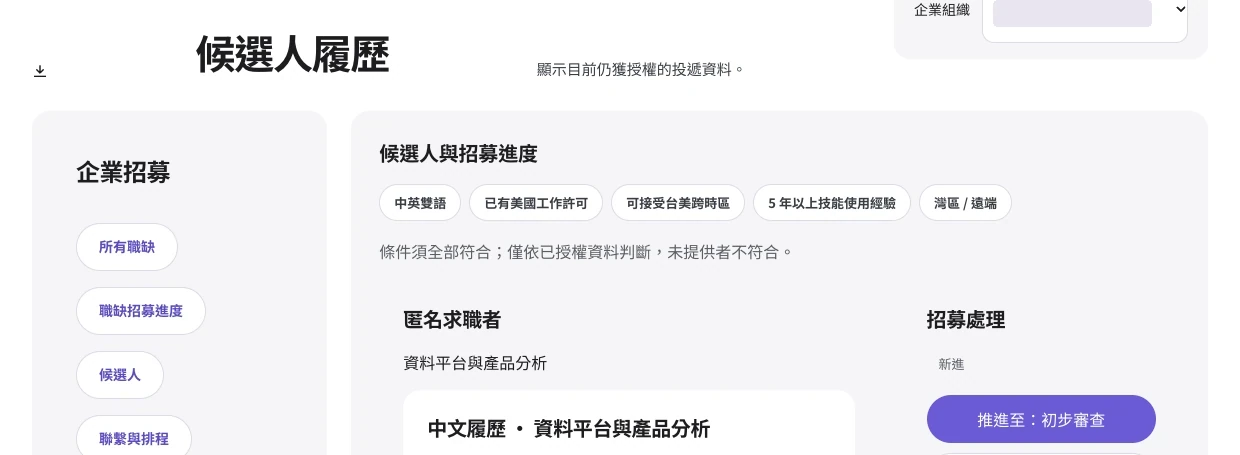
- Open “Candidates,” select an application for the job, and find “Recruitment actions.”
 View full size
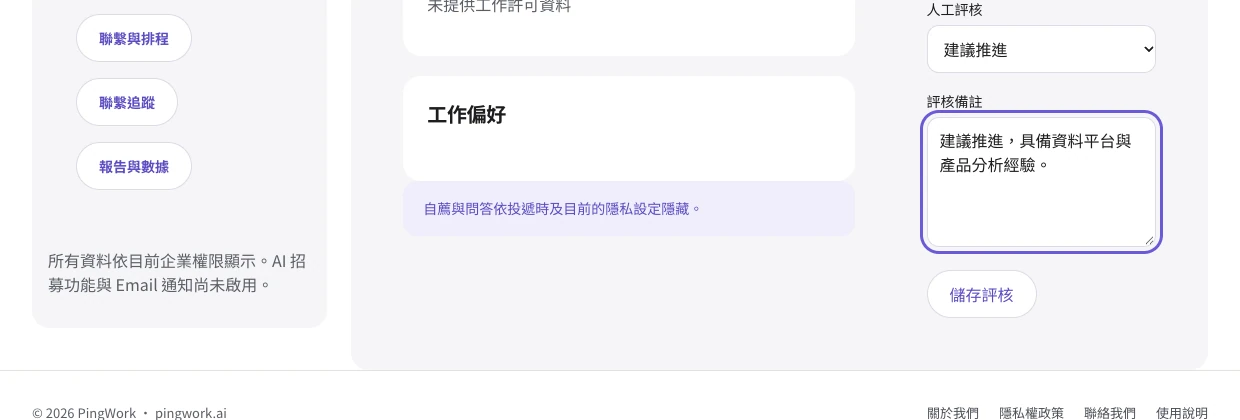
Example · Open “Recruitment actions” on the candidate’s application record. - Under “Human assessment,” choose “Recommend advancing,” “Hold,” or “Recommend rejecting.” Add “Assessment notes” if needed, then select “Save assessment.”
 View full size
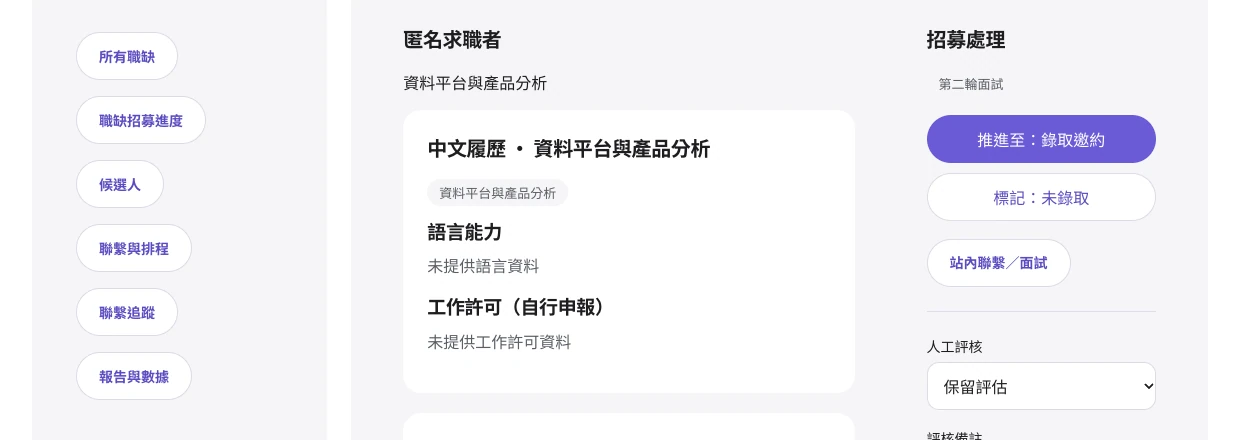
Example · Choose a human assessment, add notes, and select “Save assessment.” - To update the applicant’s progress, separately select an available stage action, such as “Move to: Offer” or “Move to: Hired.” If you choose “Mark: Rejected,” confirm it in the dialog.
 View full size
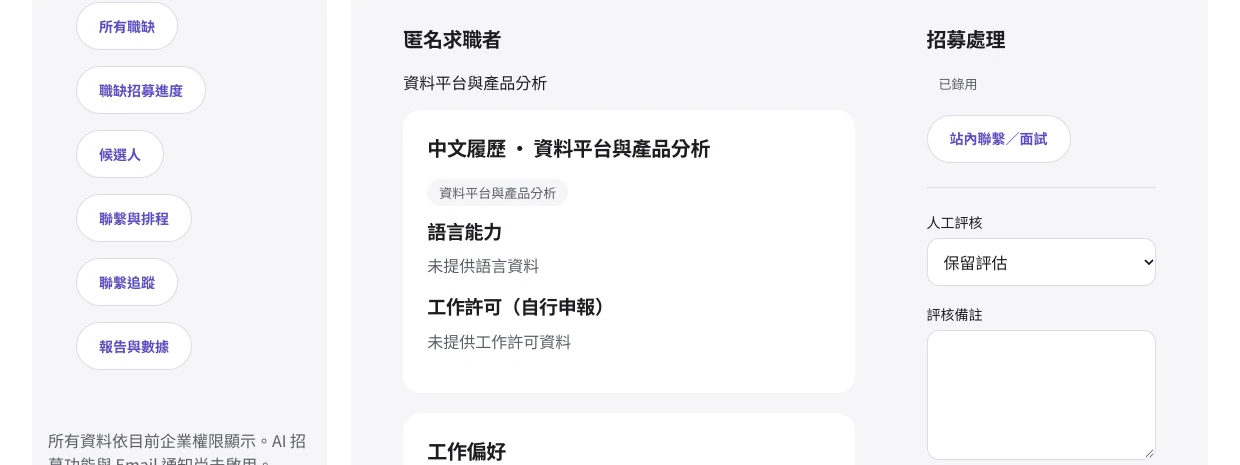
Example · Use the separate stage action to advance the application. This example shows “Move to: Offer.” - Reopen the candidate record and verify the current stage. Stage controls are removed after the status becomes “Hired” or “Rejected.”
 View full size
Example · Reopen the application and verify “Hired.” Stage actions are closed after this terminal status.
Check the result
The assessment and notes stay in the employer workspace. After a stage update succeeds, the applicant can open their receipt from the “Application progress updated” notice.