Respond to, reschedule, or cancel a booking
My bookings shows the actions available for your role and the current booking status.
Steps
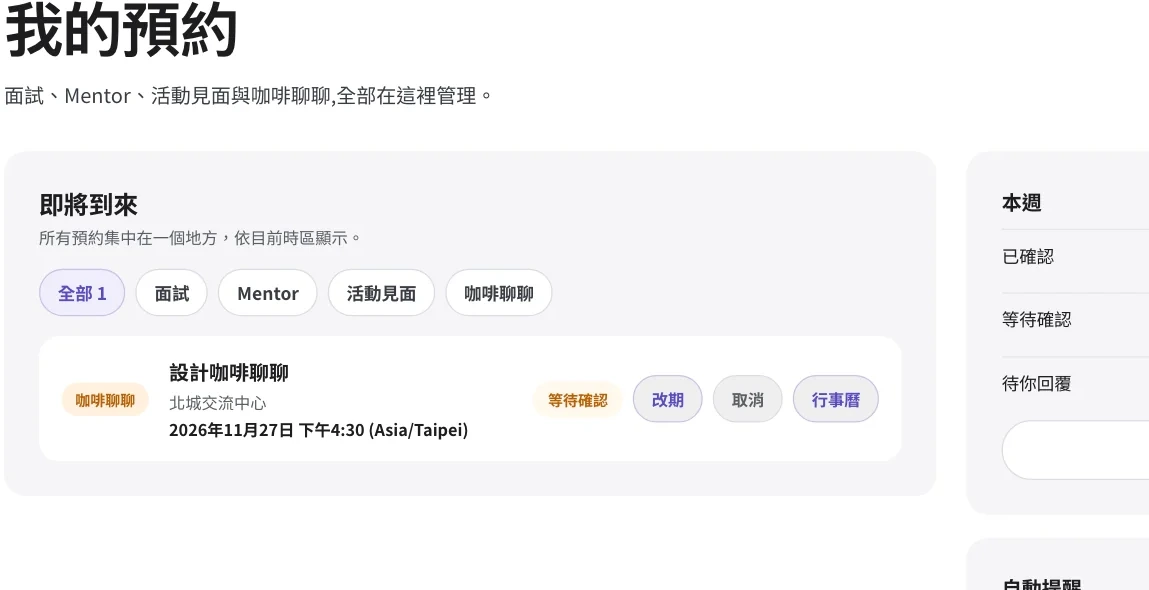
- Open My bookings, select the booking and confirm the other person and original time. Accept or decline an invitation that needs a response.
 View full size
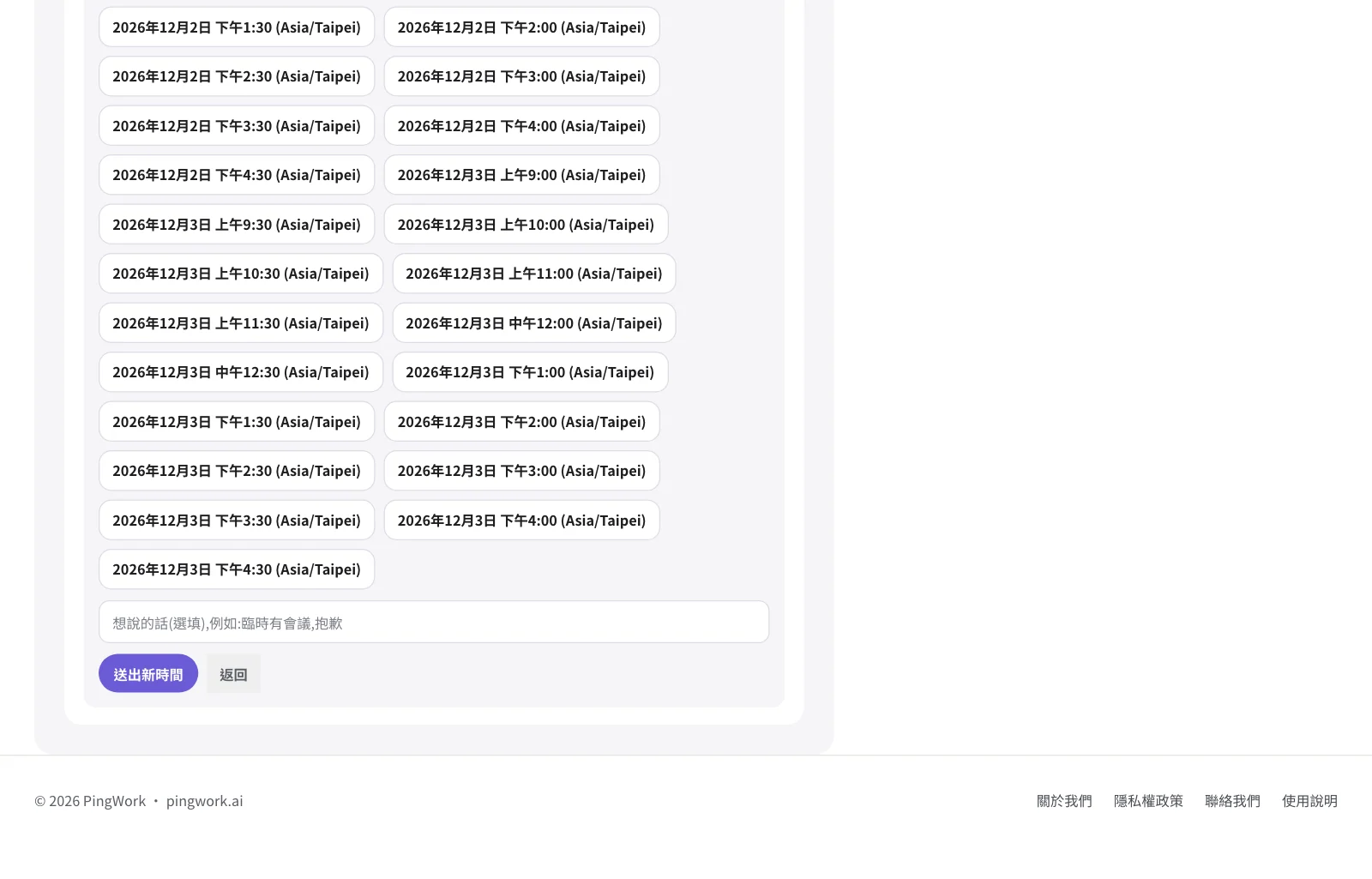
Example · Open the original booking in My bookings and verify the time and the other party. - To reschedule, choose the rescheduling action and an available alternative slot. Add a note if needed. Check the new time after the other person responds.
 View full size
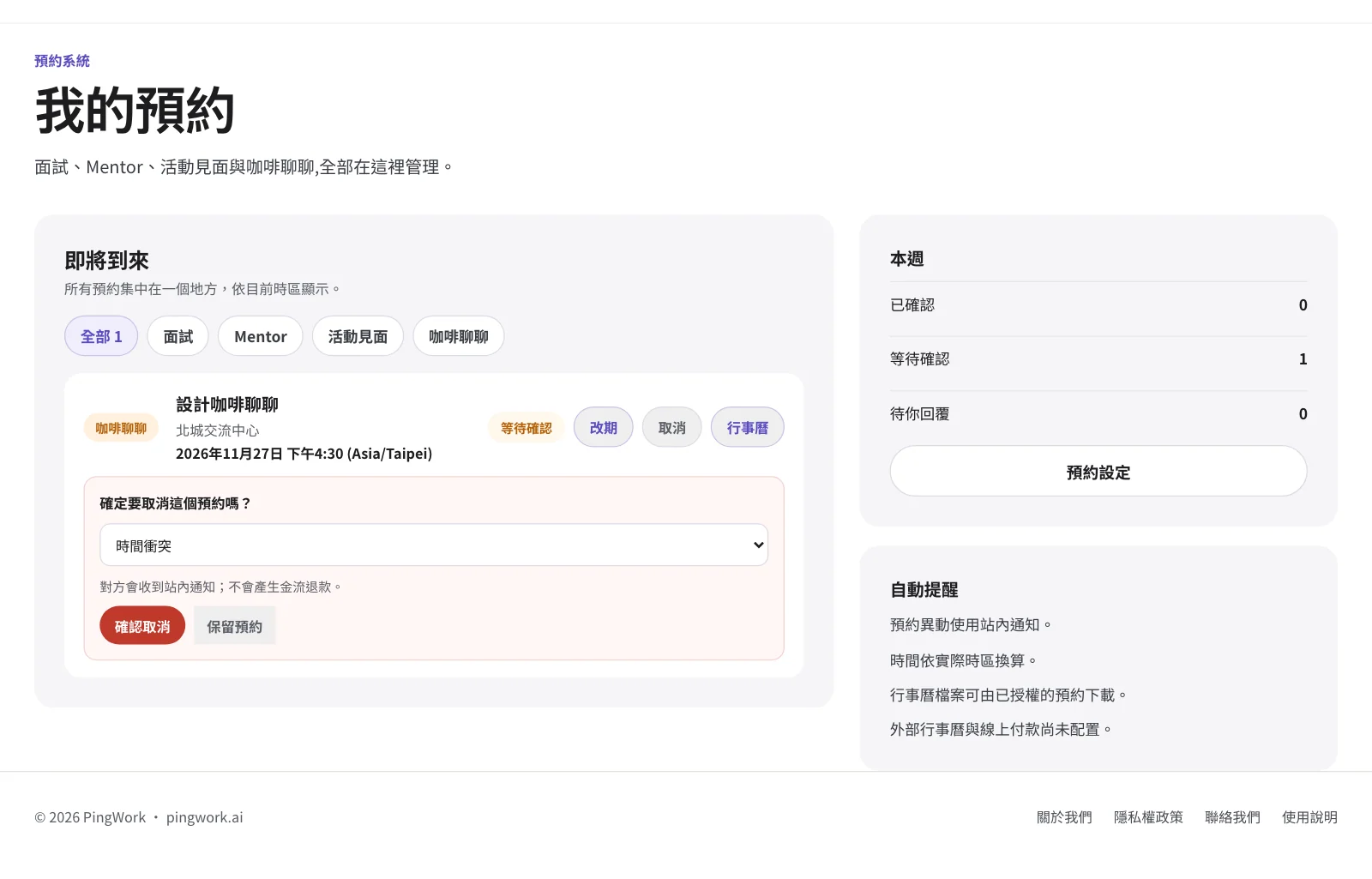
Example · Choose an alternate time in the rescheduling panel, then confirm the request. - If you cannot attend, choose cancellation, check the details and select Confirm cancellation. Reopen the booking to verify its status.
 View full size
Example · Review the booking in the cancellation panel, then confirm cancellation and check the status.
Check the result
The booking displays its current state, such as confirmed, awaiting reschedule confirmation, rescheduled, canceled or declined.