Create and publish an event
Start in All events for an organization you are authorized to manage.
Steps
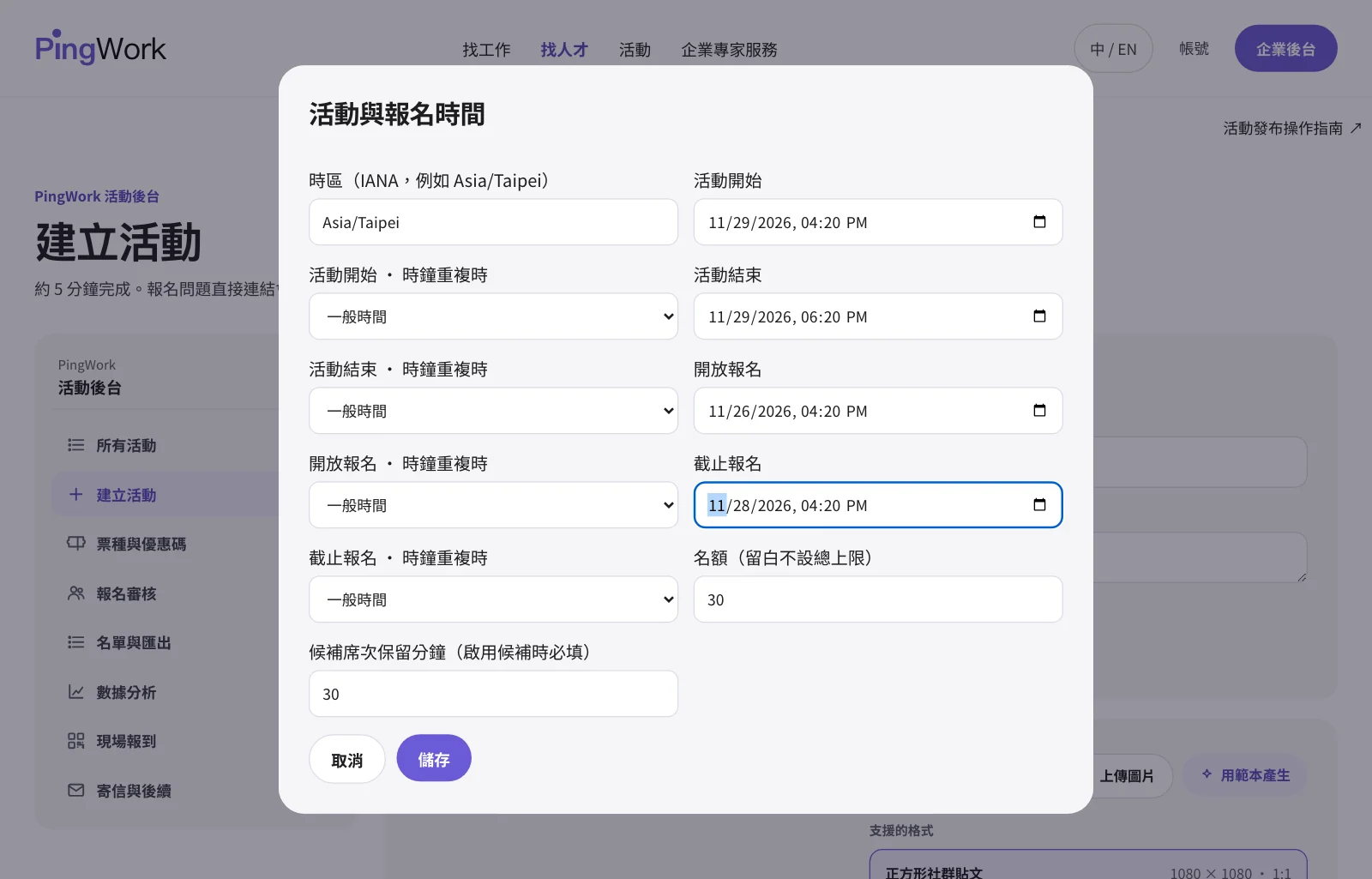
- Select Create event. Enter a title, description, format, venue, time zone, event dates and registration window.
 View full size
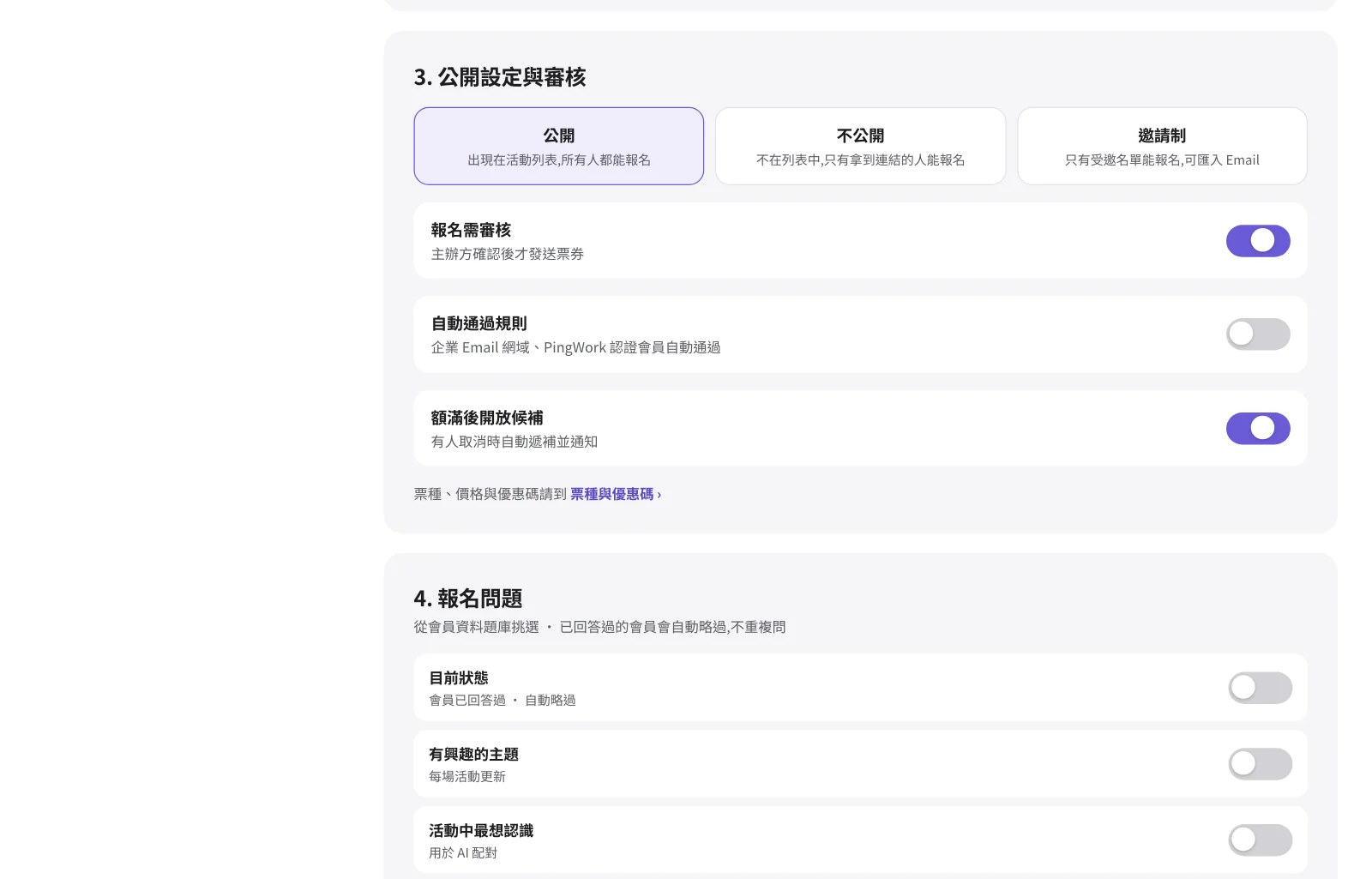
Example · Check the event dates, time zone and registration window in date settings. - Set visibility, capacity, approval and waitlist rules. If you enable the waitlist, enter the seat-offer hold time and check the available event terms.
 View full size
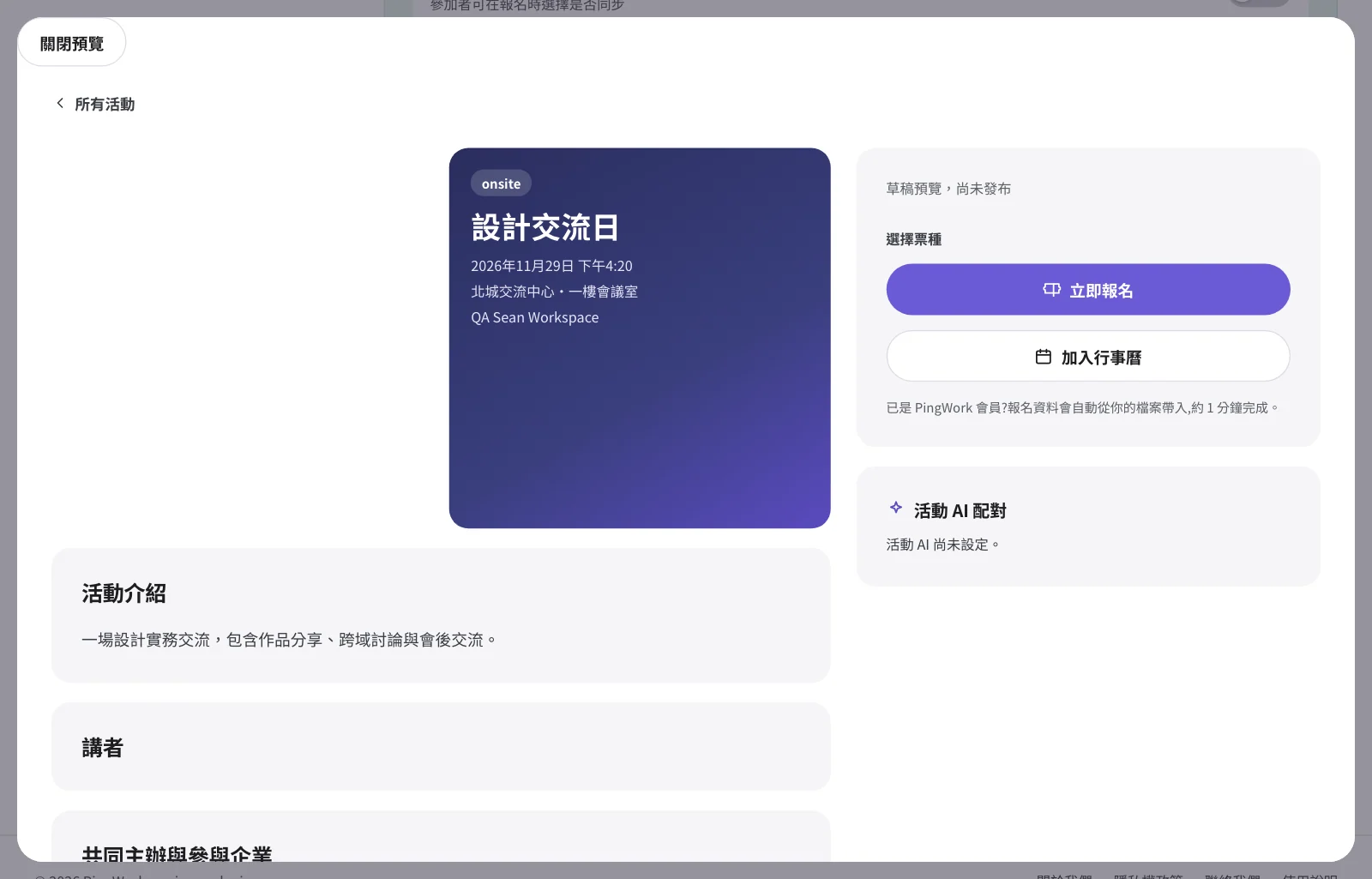
Example · Use this section to set visibility, approval and waitlist rules. - Preview the saved draft and review it. Preview again after edits. Publish the reviewed version, then reopen the detail from the event list.
 View full size
Example · Review the time and venue in the saved draft preview before publishing.
Check the result
Once published, attendees can open the event from a listing or a direct link, according to visibility.