Invite attendees to connect and review event analytics
Use the event roster’s contact permissions to guide follow-up.
Steps
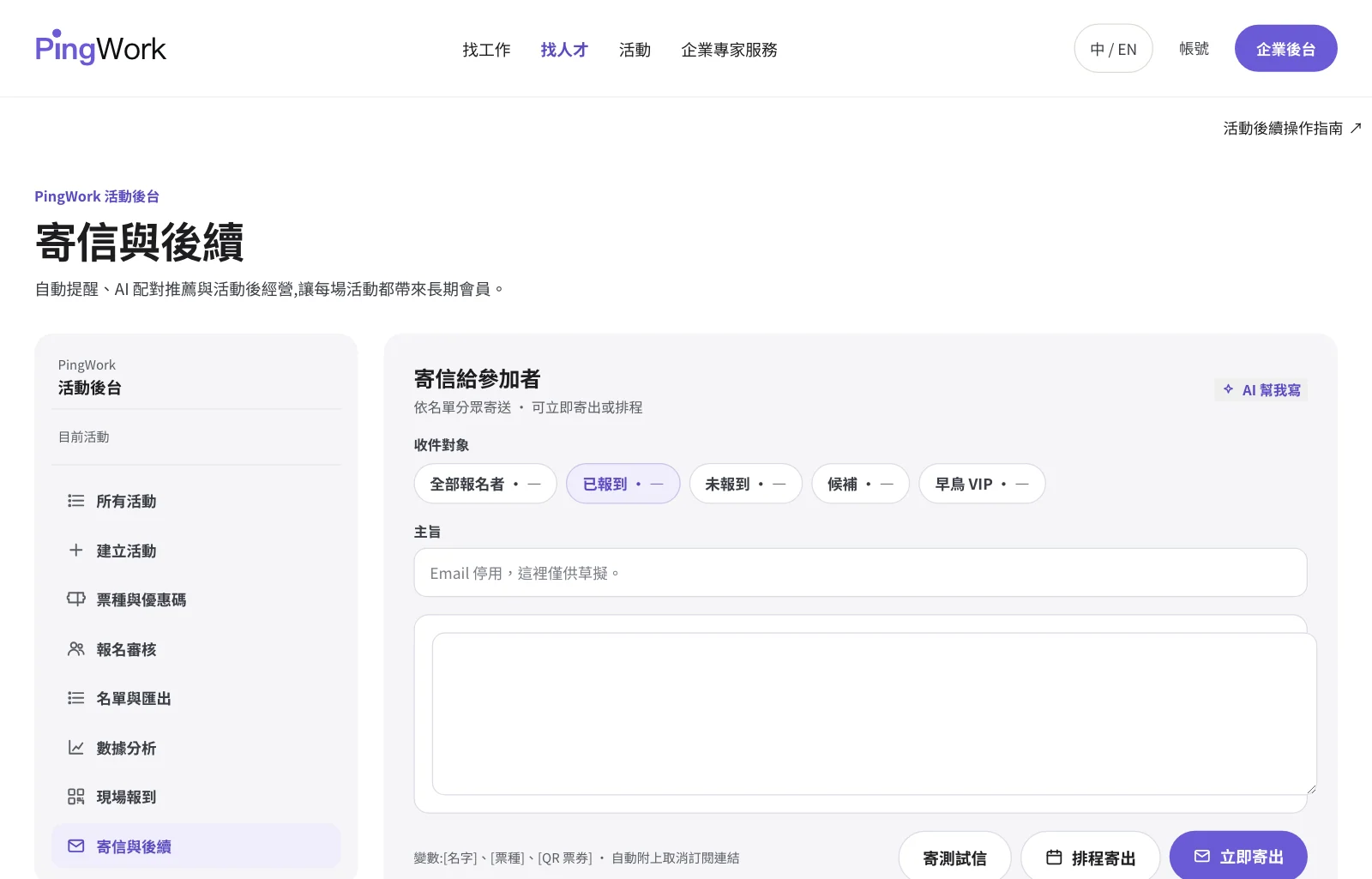
- Open Email & follow-up for the event. Check which attendees consented to in-app contact.
 View full size
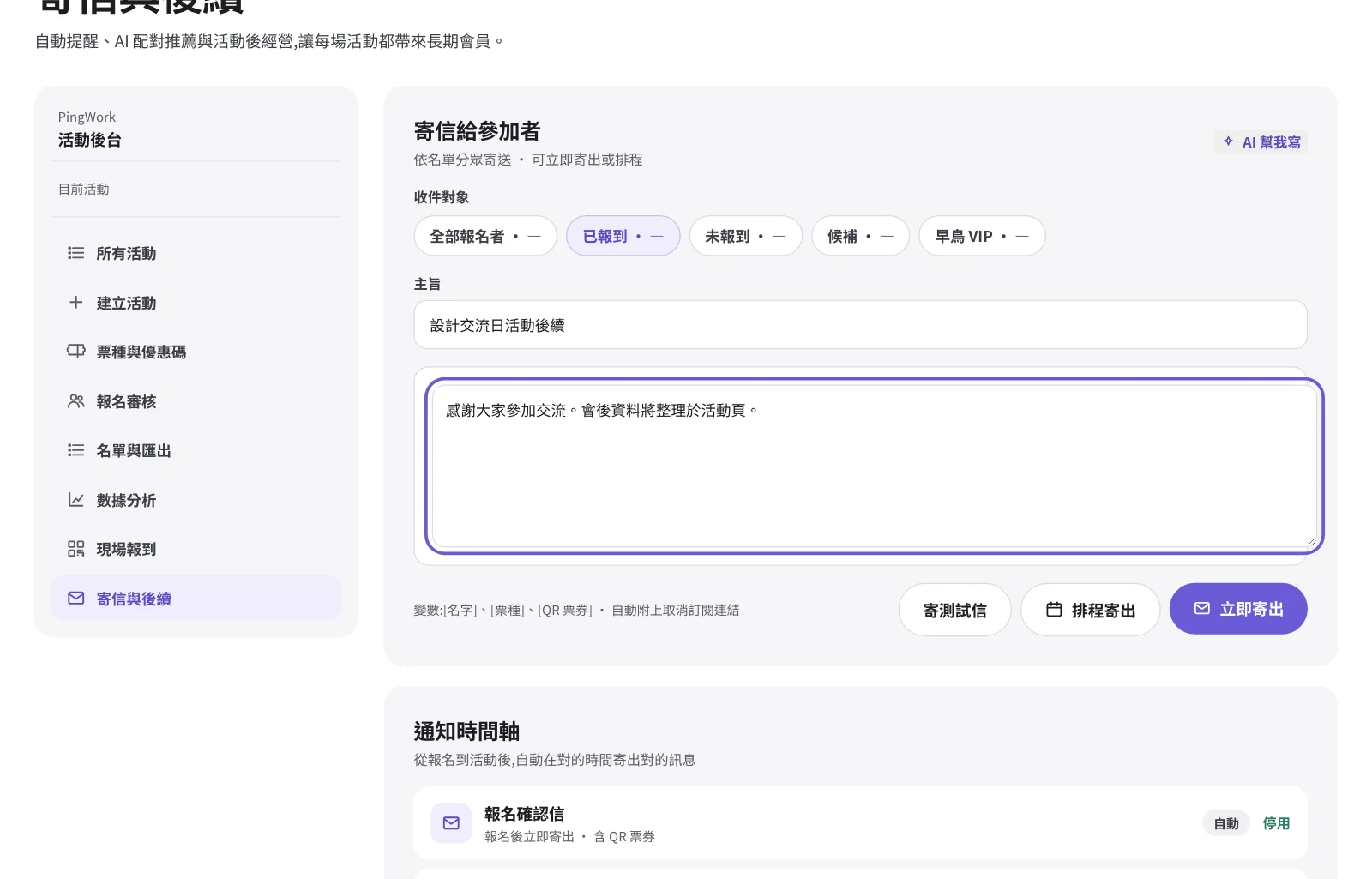
Example · Open Email & follow-up from the event workspace. Use Registrants & export to check who has consented to in-app contact. - Use Invite consenting attendees to connect for eligible people. The email area currently supports drafting only.
 View full size
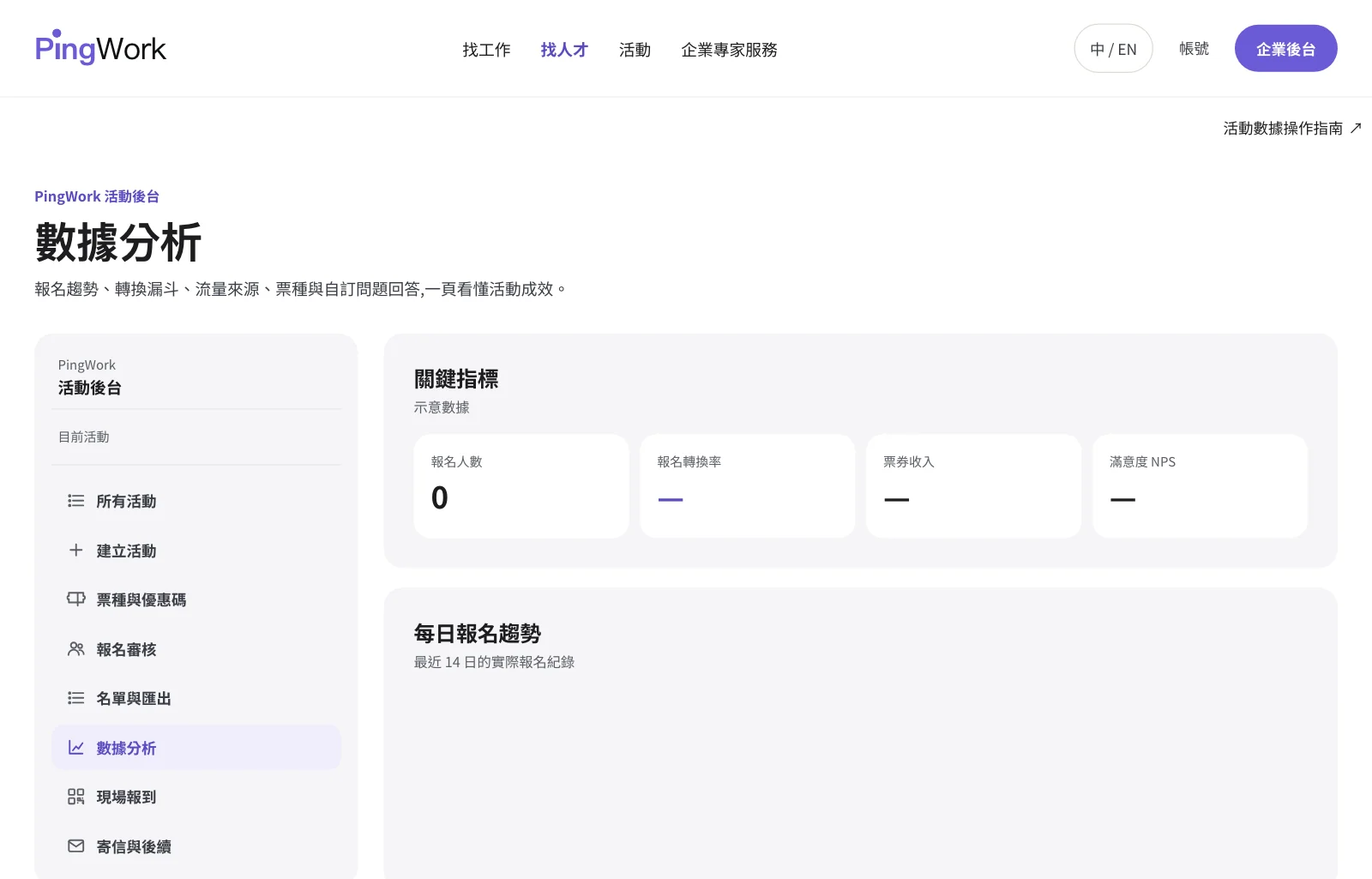
Email can be drafted here. Use the roster’s in-app contact control to invite eligible attendees. - Open Analytics to review registrations, check-ins and available recent trends. Use the export control if you need a copy.
 View full size
Example · Analytics shows the registration summary and daily trend. Scroll down for check-in metrics and export.
Check the result
Available metrics reflect recorded activity for the event. Missing metrics appear blank or as a dash.