Send a connection invitation from your event receipt
Manual networking requires the organizer to enable the feature and both attendees to meet the event’s registration and consent conditions.
Steps
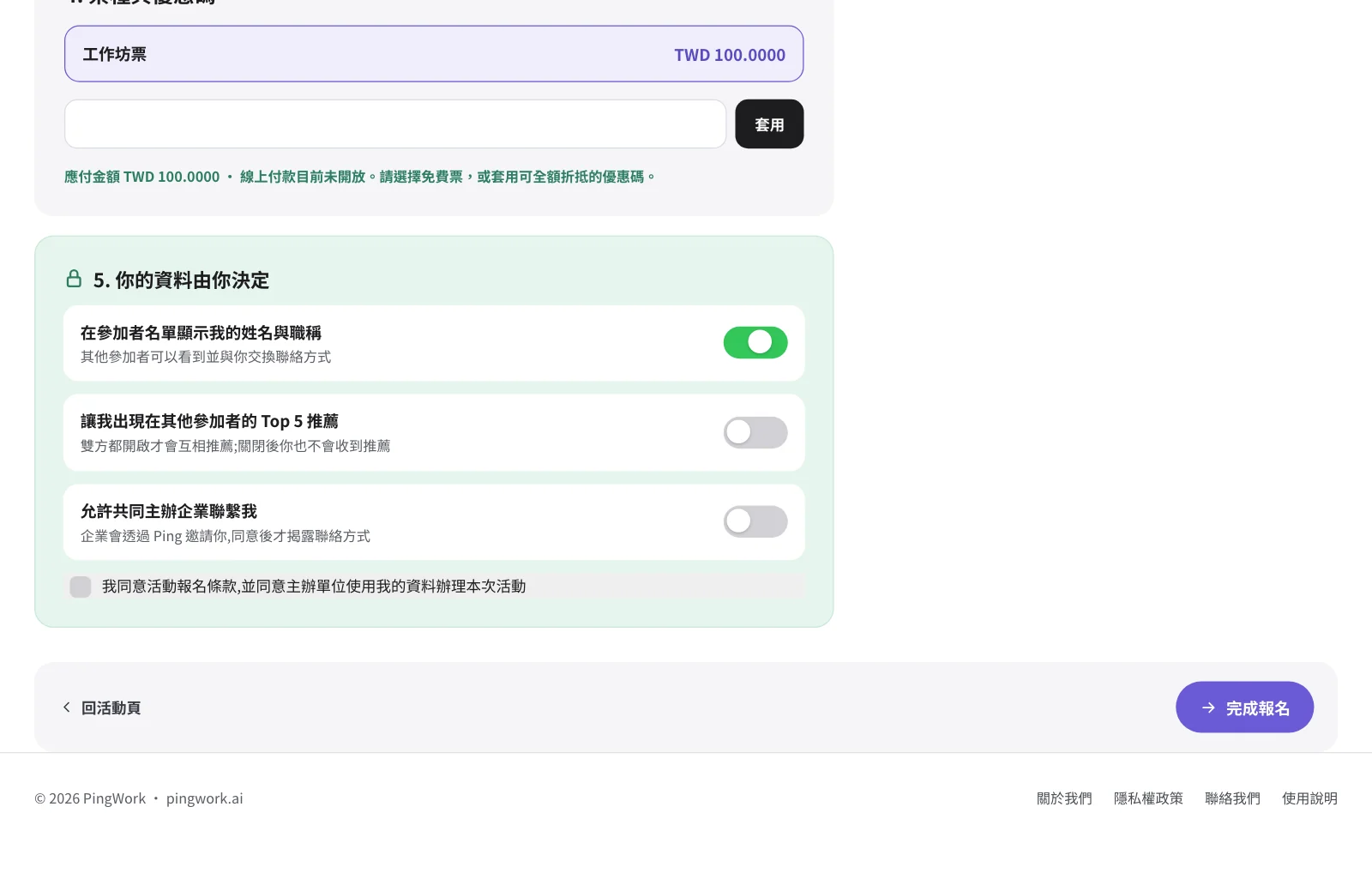
- Choose the available directory and contact permissions you are comfortable with during registration. Once your seat is confirmed, open your receipt.
 View full size
Example · During registration, choose whether to appear in the directory and which contact to allow. - If Attendees available for manual networking appears, choose someone from the directory. Confirm the event and recipient, then send a Ping.
 View full size
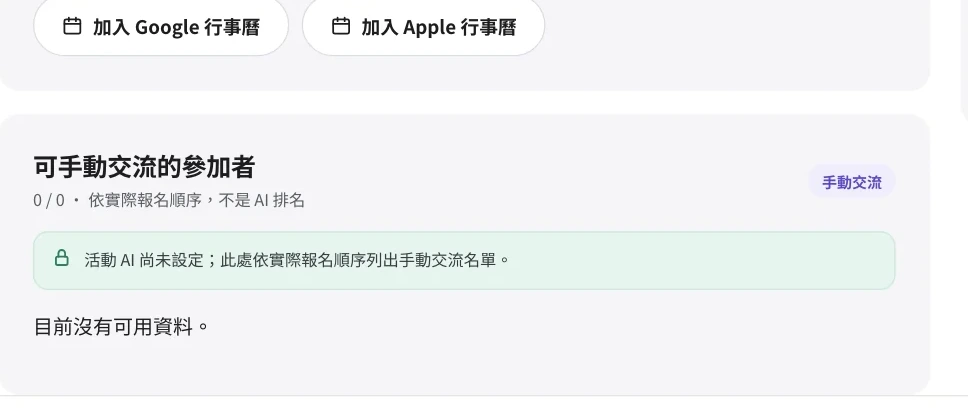
After your seat is confirmed, check Attendees available for manual networking below the receipt. This example has no eligible attendees. - Check the invitation under Connections. If both people accept and the organizer allows bookings, choose one of the other person’s available slots.
 View full size
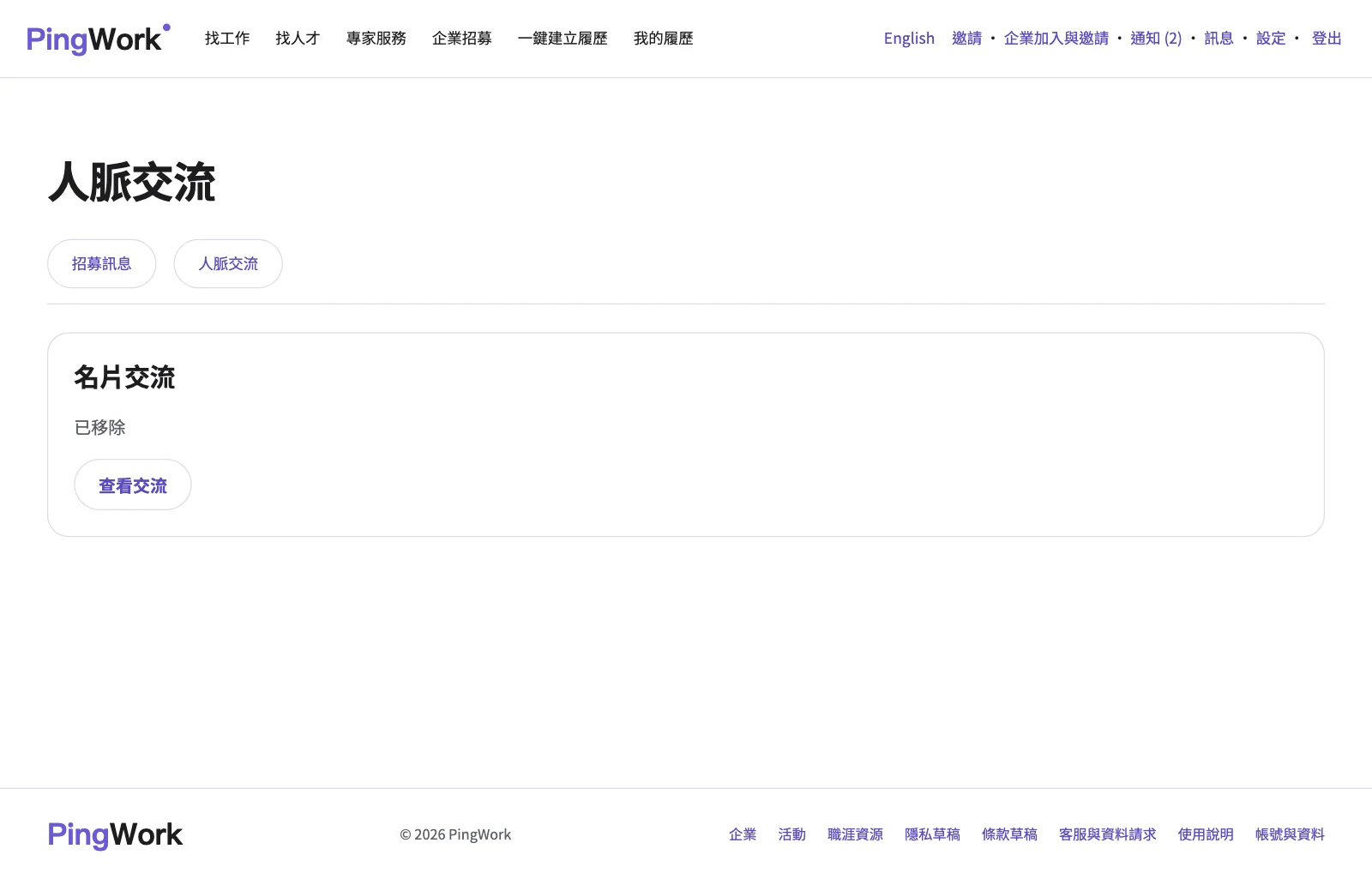
Connections lists invitations with their status. The example shows a business-card connection. Event networking requires mutual acceptance and an available slot before booking.
Check the result
The recipient gets an in-app invitation. A meeting requires a separate available slot and booking confirmation.