Scan ticket QR codes and check attendees in
Use the complete QR on the attendee’s in-app receipt.
Steps
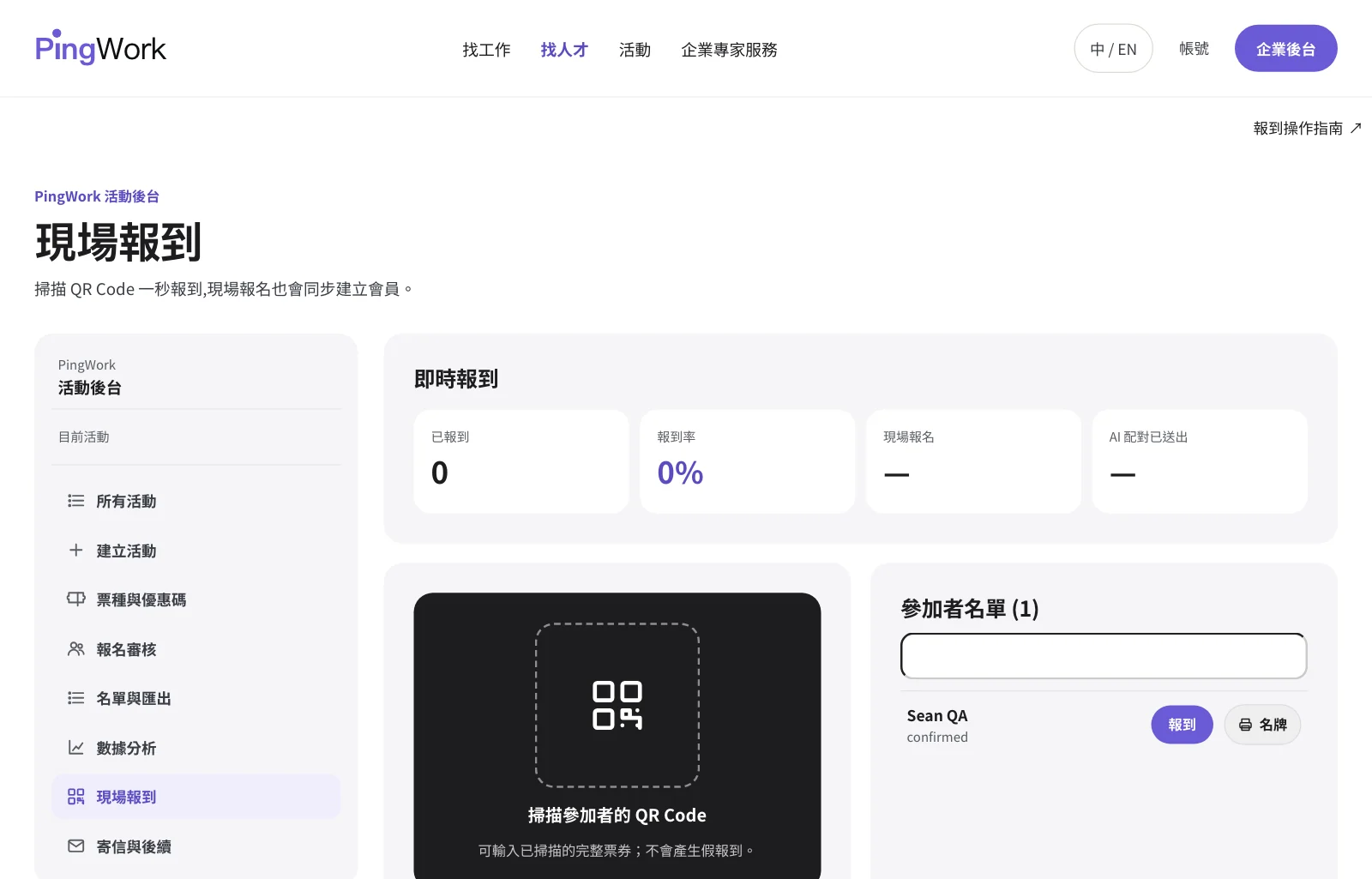
- Open Check-in for the correct event and ask the attendee to open their confirmed receipt.
 View full size
Example · Open on-site check-in from the event workspace and confirm the event name. - Read the QR using the available scanner or image control. If it cannot be read, use the original uncropped image or enter the complete scanned value.
 View full size
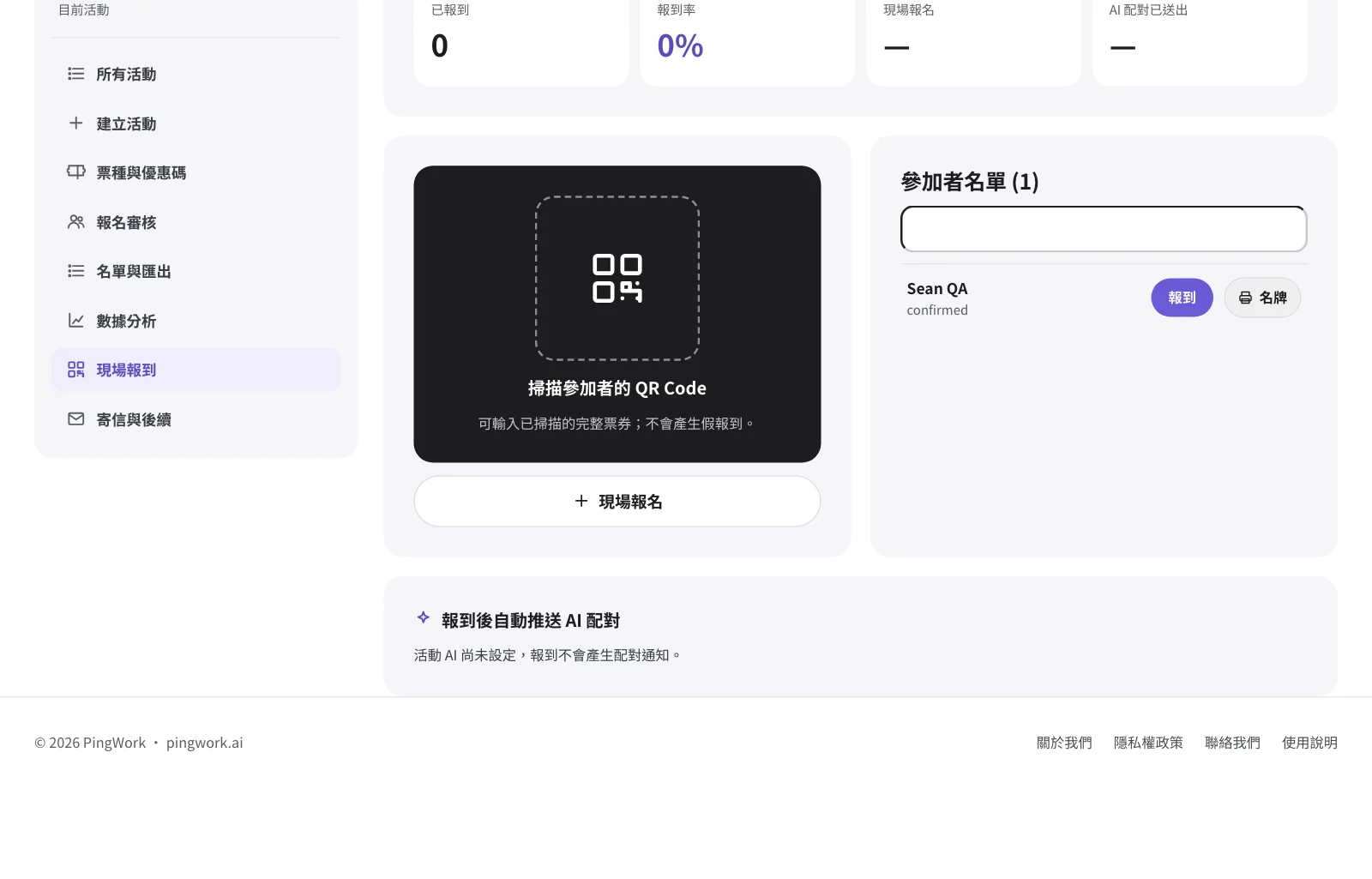
Example · Choose a clear QR image using the scanner. You can also check a guest in from the attendee list. - Wait for the check-in result, then find the attendee in the roster. If the result is uncertain, retry the original request first.
 View full size
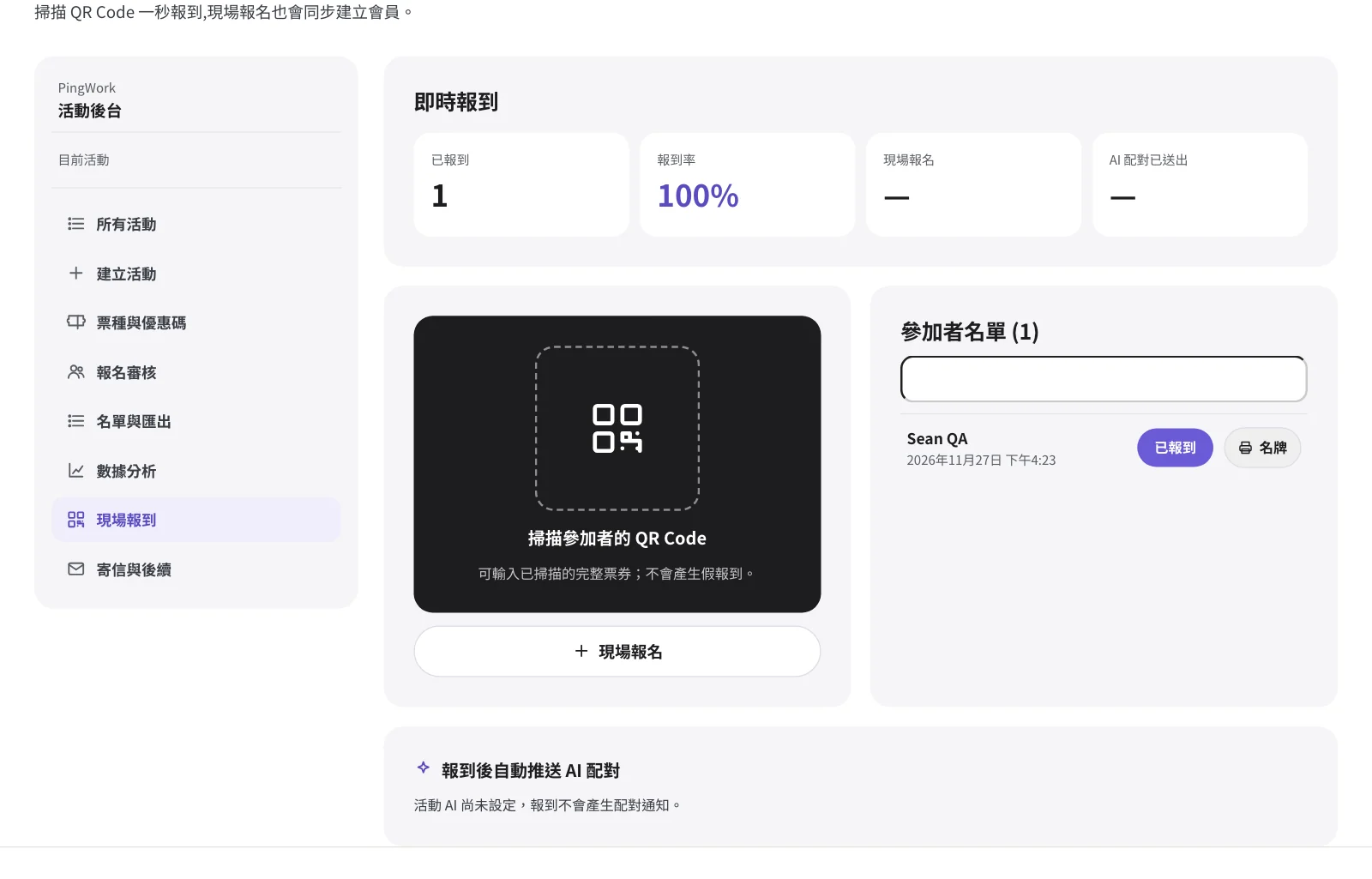
Example · When check-in is processed, verify the Checked in status and time in the roster.
Check the result
Scanning the same ticket twice keeps a single check-in record.