Find an event and add it to your calendar
Start with an event listing to see its time, venue and registration options.
Steps
- Open Events and select an event card. If the list is empty, clear any filters to check for other published events.
 View full size
Example · Choose an event card from the directory or switch the category filter. - Check the date, time zone and venue. To set a reminder, download the ICS file if offered and import it into your calendar.
 View full size
Example · Check the date, time and venue in the event details. When provided, Add to calendar downloads an ICS file. - To attend, use the registration link on this event. If it opens the organizer’s site, register there.
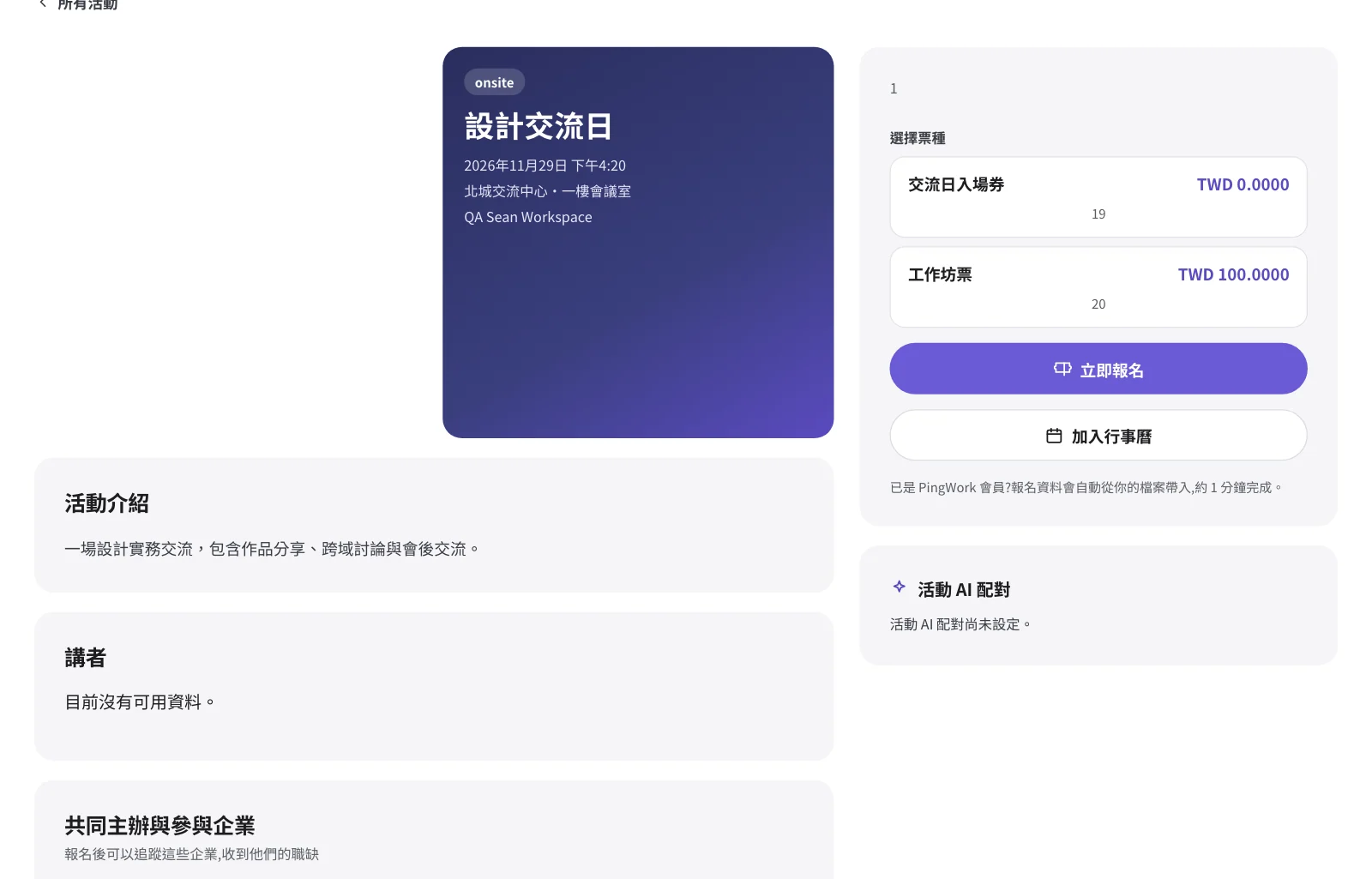 View full size
Example · Choose a ticket type and use the registration entry on the event detail page.
Check the result
Importing creates a calendar entry. Register separately to reserve a place.