Save jobs and set up job alerts
Sign in to save supported jobs or create alerts for your chosen criteria.
Steps
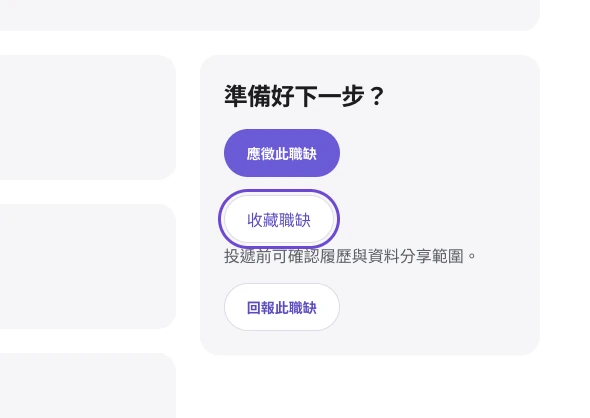
- Select “Save job” on the listing. Reopen it from Saved jobs or choose “Remove saved job.”
 View full size
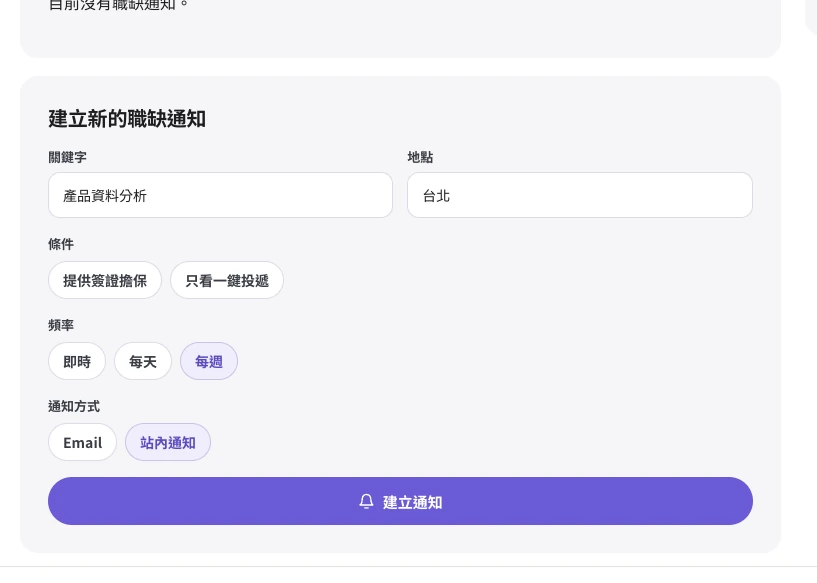
Example · “Save job” on the job detail page adds this role to your saved jobs. - Open Job alerts, enter a keyword or location, choose conditions and frequency, and save with in-app notifications selected.
 View full size
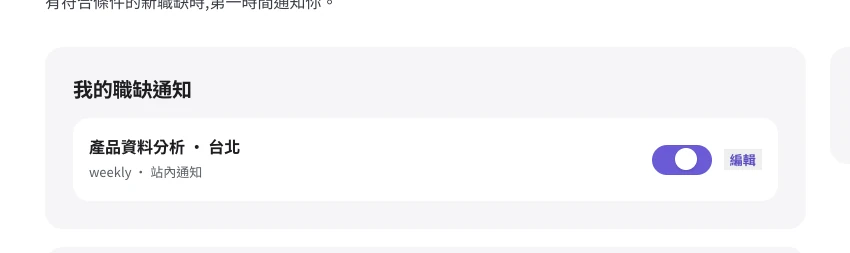
Example · Enter a keyword or location, choose a frequency and “In-app,” then select “Create alert.” - Reopen the alert from the list to edit or pause it.
 View full size
Example · In “My job alerts,” use “Edit” to change the rule or its switch to pause it.
Check the result
Your lists show the jobs and alert settings you saved.