Create or import a résumé
Sign in to start an editable resume draft manually or with an attachment.
Steps
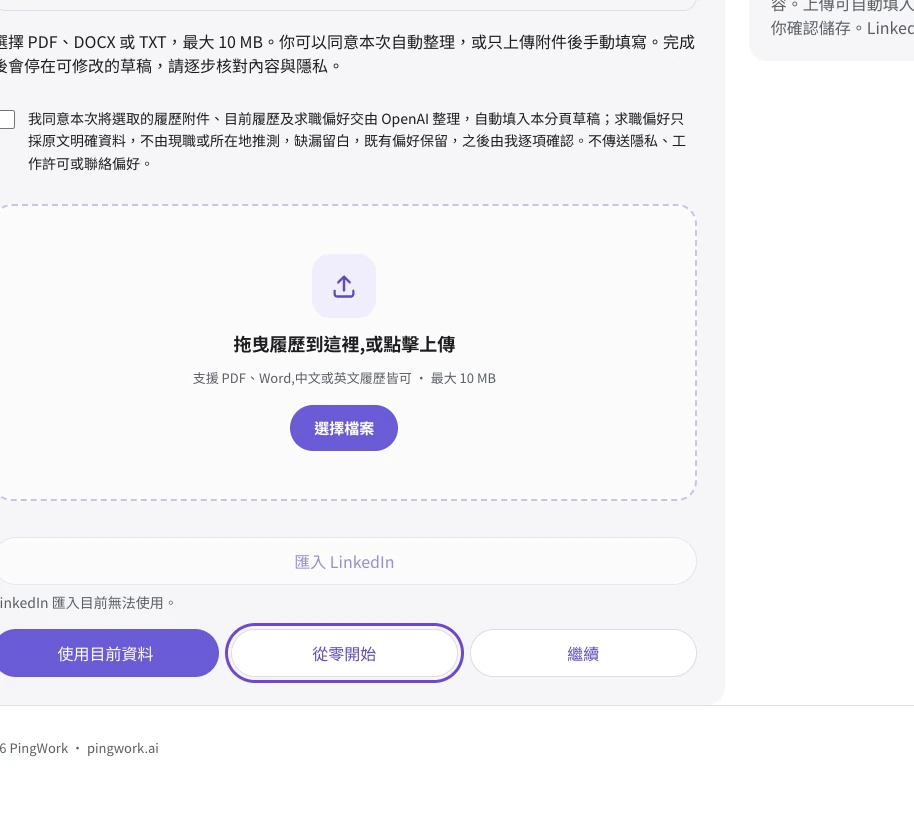
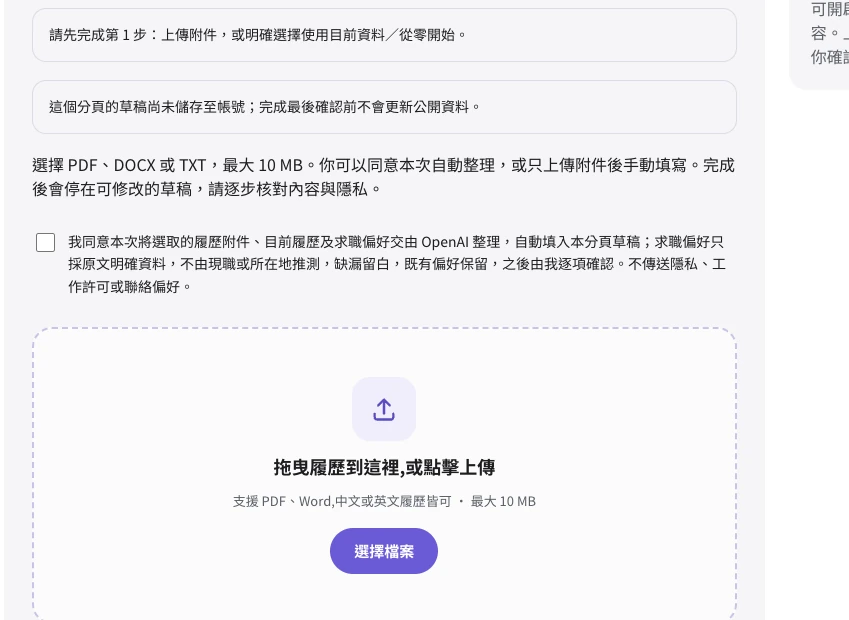
- Open the resume flow and choose “Start from scratch” or “Use existing data.” To attach a file, choose a PDF, DOCX, or TXT up to 10 MB.
 View full size
Example · Start with your existing data, start from scratch, or upload a résumé file. - If automatic filling is offered, review the consent scope before choosing it. If LinkedIn import is available, start authorization from this page.
 View full size
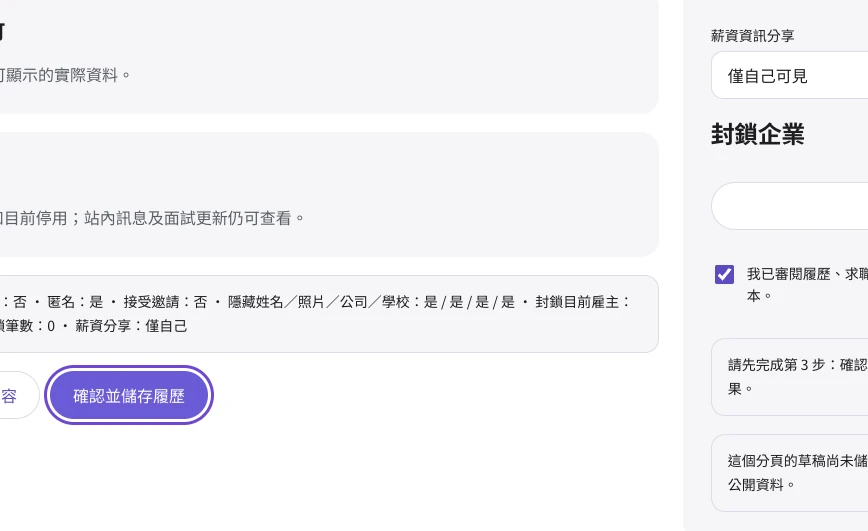
Review the automated processing consent before uploading. LinkedIn import and automated processing are disabled in this demo. - Review and correct the content and preferences, confirm privacy choices, then select “Confirm and save resume.”
 View full size
Example · Review the résumé, work preferences, and privacy settings, then check the confirmation box and save.
Check the result
Once “Resume saved” and a version number appear, return to My profile to review it.