Set up your booking link and availability
Set your own time zone before choosing the times others can book.
Steps
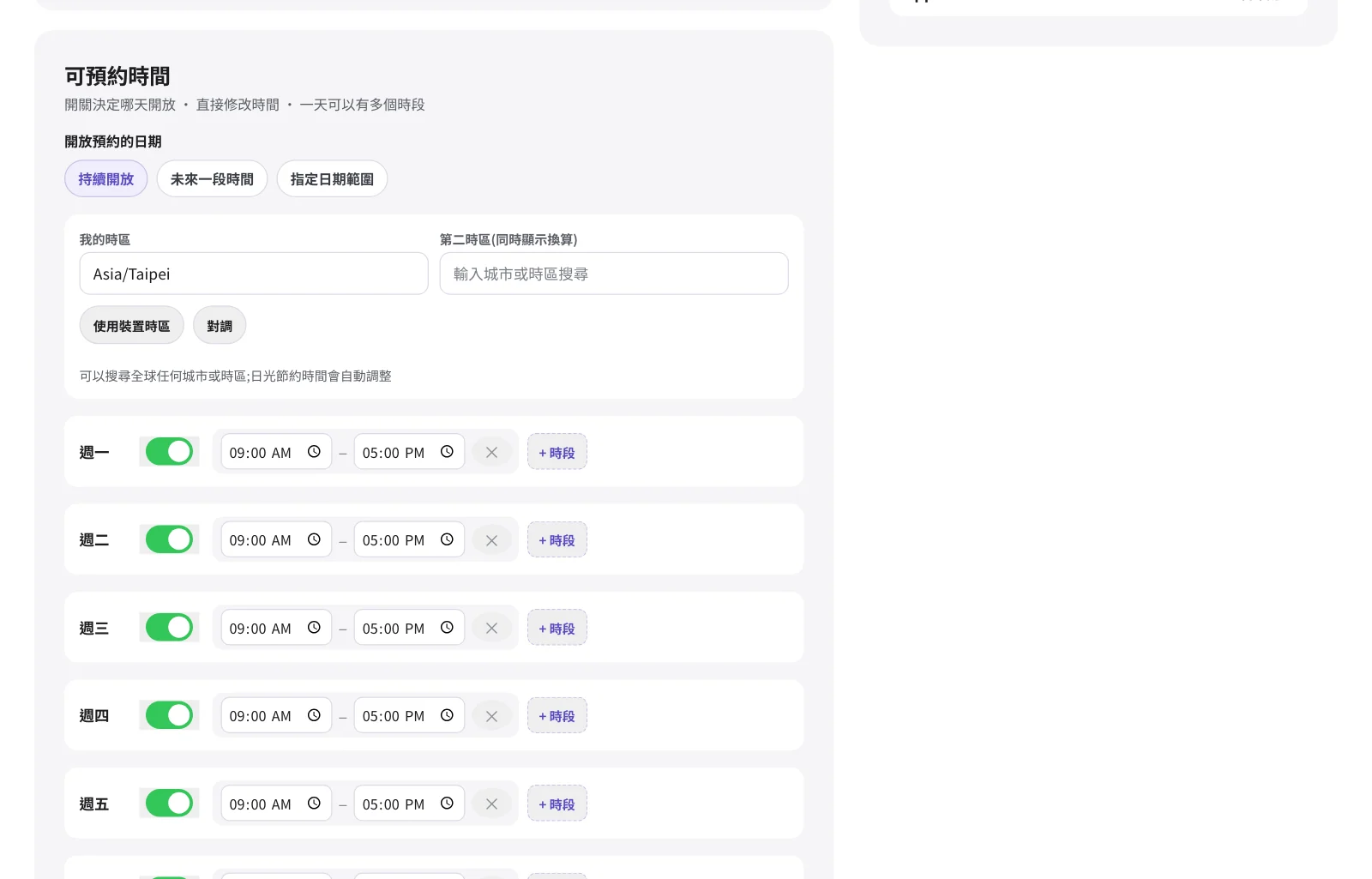
- Open Scheduling settings and enter your booking handle and time zone. Use lowercase letters, numbers and hyphens for the handle.
 View full size
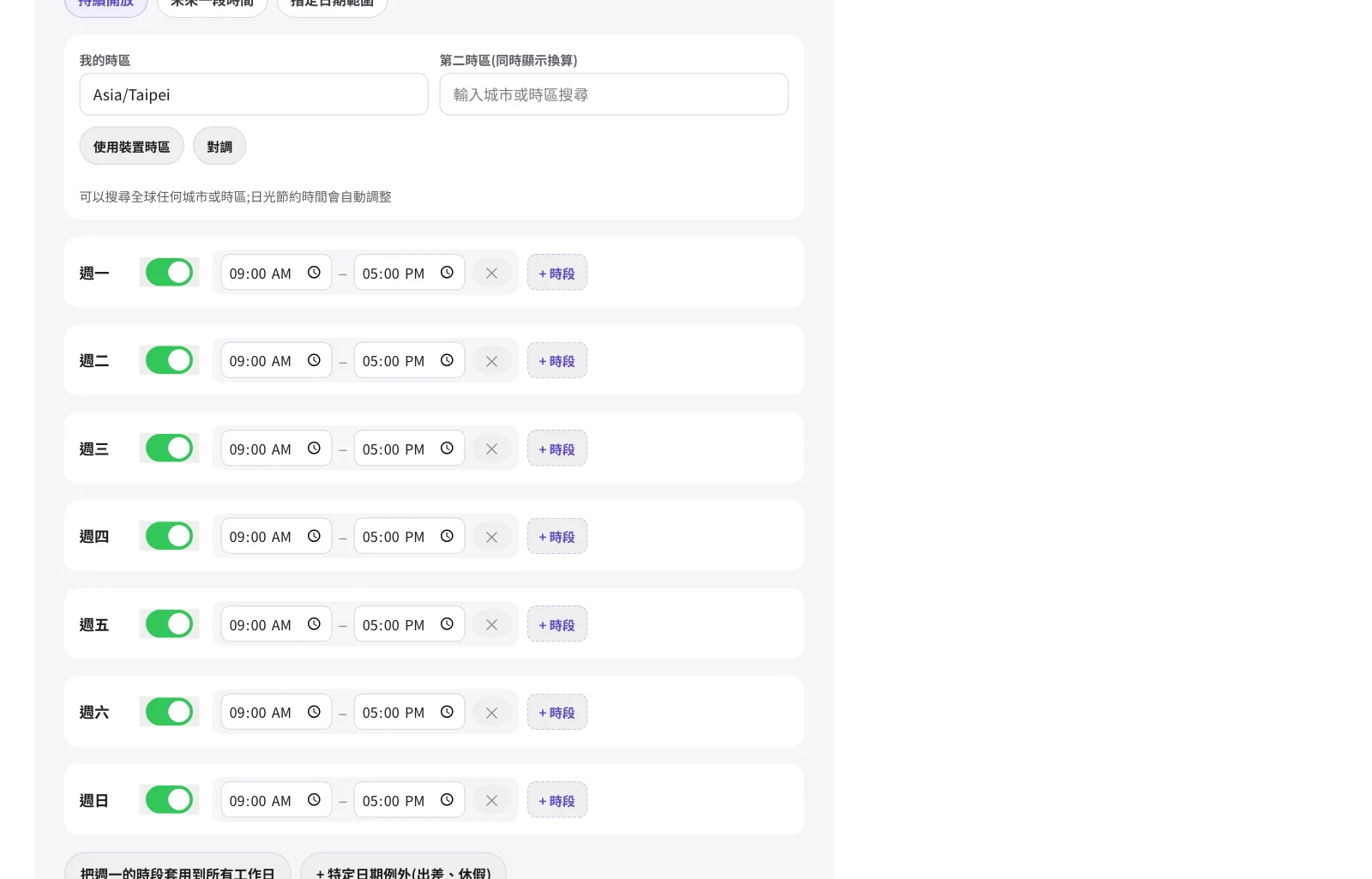
Example · Check the main time zone under Availability. Set your booking handle in the booking link panel on the same page. - Save your settings, then edit and save your availability. Add a pre-booking question if needed.
 View full size
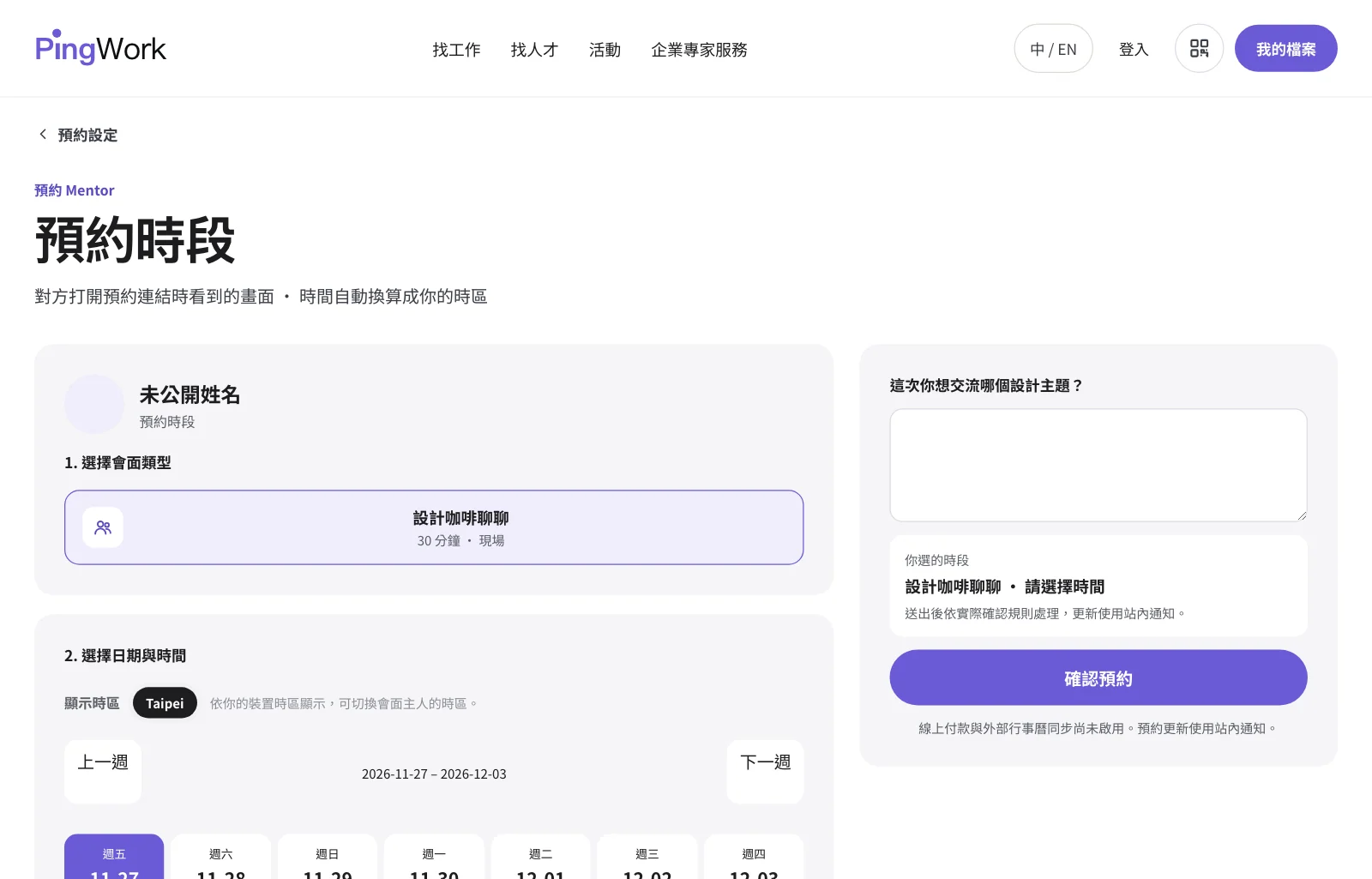
Example · Set availability for each day and add a question in the meeting type if needed. - Open your booking link and check the type of appointment and available slots before sharing it.
 View full size
Example · Open your booking link, check the meeting type, then select a date to see available times.
Check the result
People with your booking link can see the slots you currently offer.